> ## Documentation Index
> Fetch the complete documentation index at: https://moengage-unity-sdk-initialization-split.mintlify.site/llms.txt
> Use this file to discover all available pages before exploring further.
# Create OSM Campaign
> Step-by-step guide to creating an On-site Messaging campaign in MoEngage. Define your audience, design content, and schedule delivery with ease.
# Interactive Walkthrough
To create an On-Site Messaging (OSM) campaign, perform the following steps:
1. On the sidebar menu in MoEngage, hover over the **Engage** menu item  . The **Engage** menu appears.
2. Click **+ New Campaign**.
. The **Engage** menu appears.
2. Click **+ New Campaign**.
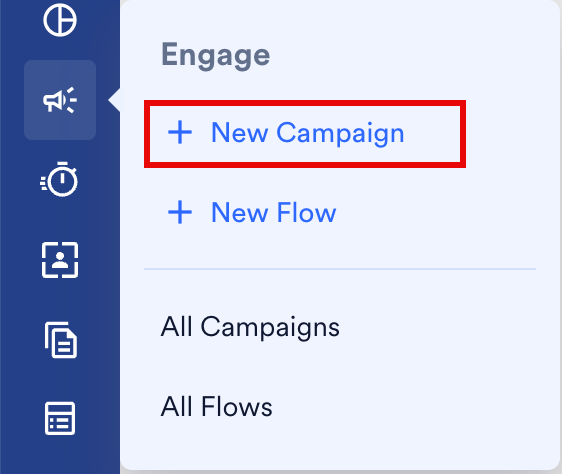 3. You can also click **All Campaigns** on the **Engage** menu and then click **+ Create campaign** on the All campaigns page.
4. On the **New Campaign** dialog box, under **Inbound**, click **On-site**.
3. You can also click **All Campaigns** on the **Engage** menu and then click **+ Create campaign** on the All campaigns page.
4. On the **New Campaign** dialog box, under **Inbound**, click **On-site**.
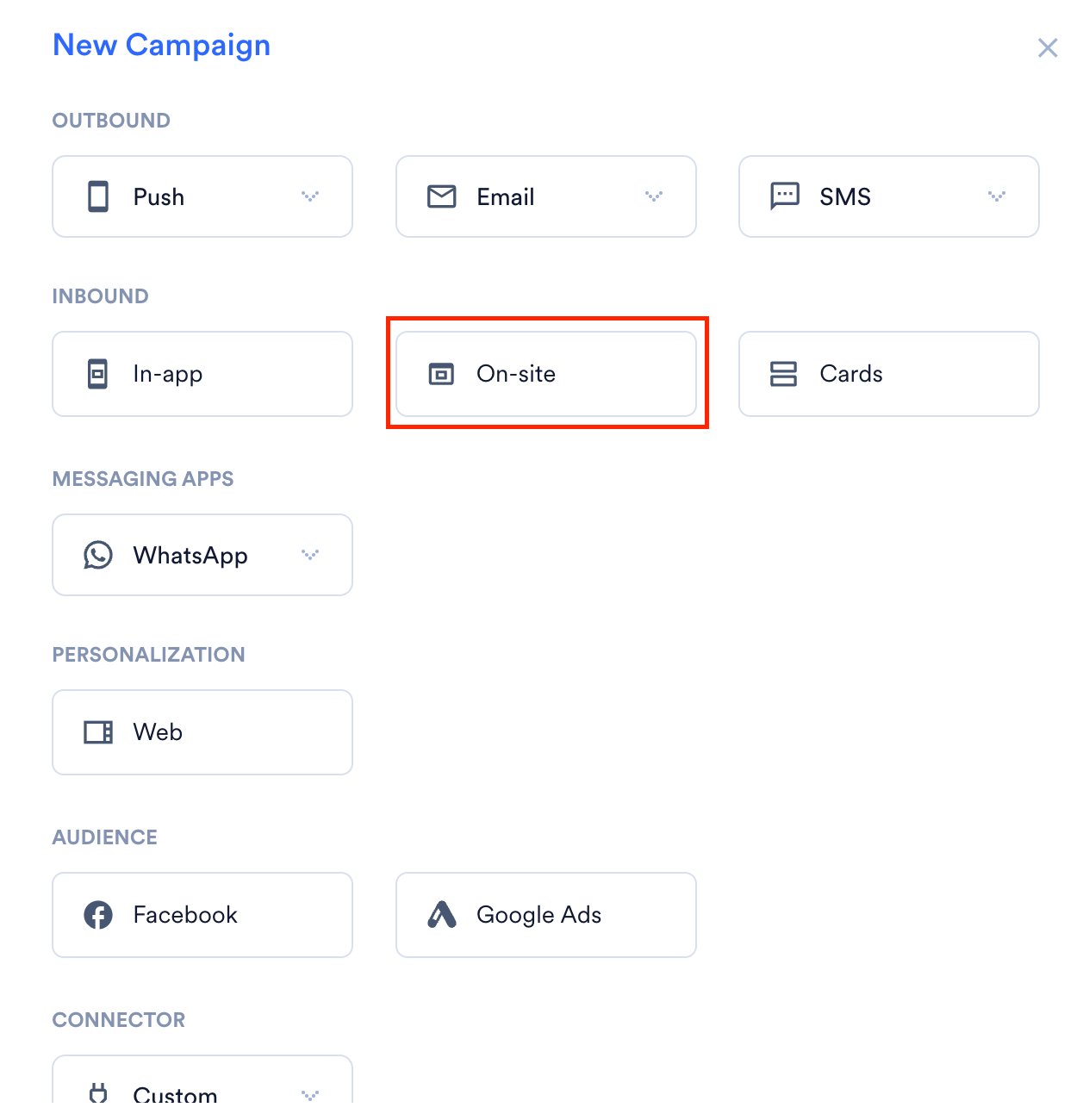 The OSM campaign creation page is displayed.
# Steps to Create an OSM Campaign
There are three steps to creating an OSM campaign, and they are:
1. [Target users](/user-guide/campaigns-and-channels/on-site-message/create/create-osm-campaign#step-1-target-users): Define the target audience for the campaign
2. [Content](/user-guide/campaigns-and-channels/on-site-message/create/create-osm-campaign#step-2-define-content): Define the content of the push notification to be sent
3. [Schedule and Goals](/user-guide/campaigns-and-channels/on-site-message/create/create-osm-campaign#step-3-scheduling-and-goals): Define the campaign's delivery schedule and goals
## Step 1: Target Users
This section contains the following:
### **Campaign details**
The campaign details section contains the following fields:
| | |
| ---------------------------------------------------------------------------------------------------------------------------------------------------------------------------------------------------------------------------------------------------------------------------------------------------------------------------------------------------------------------------------------------------------------------------- | -------------------------------------------------------------------------------------------------------------------------------------------------------------------------------------------------------------------------------------------------------------------------------------------------------------------------------------------------------------------------------------------------------------------------------------------------------------------------------------------------------------------------------------------------------------------------------------------------------------------------------------------------------------------------------------------------------------------------------------------------------------------------------------------------------------------------------------------------------------------------------------------------------------------------------------------------------------------------------------------------------------------------------------------------------------------------------------------------------------------------------------------------------------------------------------------------------------------------------------------------------------------------------------------------------------------------------------------------------------------------------------------------------------------------------------------------------------------------------------------------------------------------------------------------------------------------------------------------------------- |
|
The OSM campaign creation page is displayed.
# Steps to Create an OSM Campaign
There are three steps to creating an OSM campaign, and they are:
1. [Target users](/user-guide/campaigns-and-channels/on-site-message/create/create-osm-campaign#step-1-target-users): Define the target audience for the campaign
2. [Content](/user-guide/campaigns-and-channels/on-site-message/create/create-osm-campaign#step-2-define-content): Define the content of the push notification to be sent
3. [Schedule and Goals](/user-guide/campaigns-and-channels/on-site-message/create/create-osm-campaign#step-3-scheduling-and-goals): Define the campaign's delivery schedule and goals
## Step 1: Target Users
This section contains the following:
### **Campaign details**
The campaign details section contains the following fields:
| | |
| ---------------------------------------------------------------------------------------------------------------------------------------------------------------------------------------------------------------------------------------------------------------------------------------------------------------------------------------------------------------------------------------------------------------------------- | -------------------------------------------------------------------------------------------------------------------------------------------------------------------------------------------------------------------------------------------------------------------------------------------------------------------------------------------------------------------------------------------------------------------------------------------------------------------------------------------------------------------------------------------------------------------------------------------------------------------------------------------------------------------------------------------------------------------------------------------------------------------------------------------------------------------------------------------------------------------------------------------------------------------------------------------------------------------------------------------------------------------------------------------------------------------------------------------------------------------------------------------------------------------------------------------------------------------------------------------------------------------------------------------------------------------------------------------------------------------------------------------------------------------------------------------------------------------------------------------------------------------------------------------------------------------------------------------------------------- |
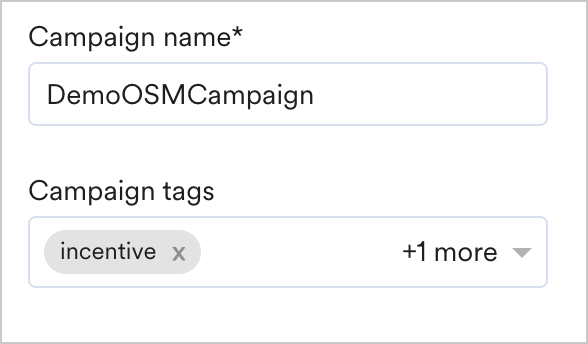
| - **Campaign name** - Type the name of the campaign to manage and identify the campaign. The campaign name must have at least five characters, and the limit is 256.
- **Campaign tags** - Select campaign tags from the drop-down list. You can select up to 5 tags. For more information, refer to [Campaign Tags](/user-guide/campaigns-and-channels/getting-started/introduction/campaign-tags).
|  |
### **Target Platforms**
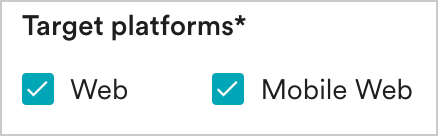
This section lets you choose the target platforms for your campaign. The following options are available:
| | |
| ---------------------------------------------------------------------------------------------------------------------------------------------------------------------------------- | ------------------------------------------------------------------------------------------------------------------------------------------------------------------------------------------------------------------------------------------------------------------------------------------------------------------------------------------------------------------------------------------------------------------------------------------------------------------------------------------------------------------------------------------------------------------------------------------------------------------------------------------------------------------------------------------------------------------------------------------------------------------------------------------------------------------------------------------------------------------------------------------------------------------------------------------------------------------------------------------------------------------------------------------------------------------------------------------------------------------------------------------------------------------------------------------------------------------------------------------------------------------------------------------------------------------------------------------------------------------------------------------------------------------------------------------------------------------------------------------------------------------------------------------------------------------------------------------------------------- |
|
|
### **Target Platforms**
This section lets you choose the target platforms for your campaign. The following options are available:
| | |
| ---------------------------------------------------------------------------------------------------------------------------------------------------------------------------------- | ------------------------------------------------------------------------------------------------------------------------------------------------------------------------------------------------------------------------------------------------------------------------------------------------------------------------------------------------------------------------------------------------------------------------------------------------------------------------------------------------------------------------------------------------------------------------------------------------------------------------------------------------------------------------------------------------------------------------------------------------------------------------------------------------------------------------------------------------------------------------------------------------------------------------------------------------------------------------------------------------------------------------------------------------------------------------------------------------------------------------------------------------------------------------------------------------------------------------------------------------------------------------------------------------------------------------------------------------------------------------------------------------------------------------------------------------------------------------------------------------------------------------------------------------------------------------------------------------------------- |
| - **Web** - Choose Web to target the Web platform for the campaign.
- **Mobile Web** - Choose Mobile Web to target the Mobile Web platform for the campaign.
|  |
### **Trigger Criteria**
#### **On Page Load**
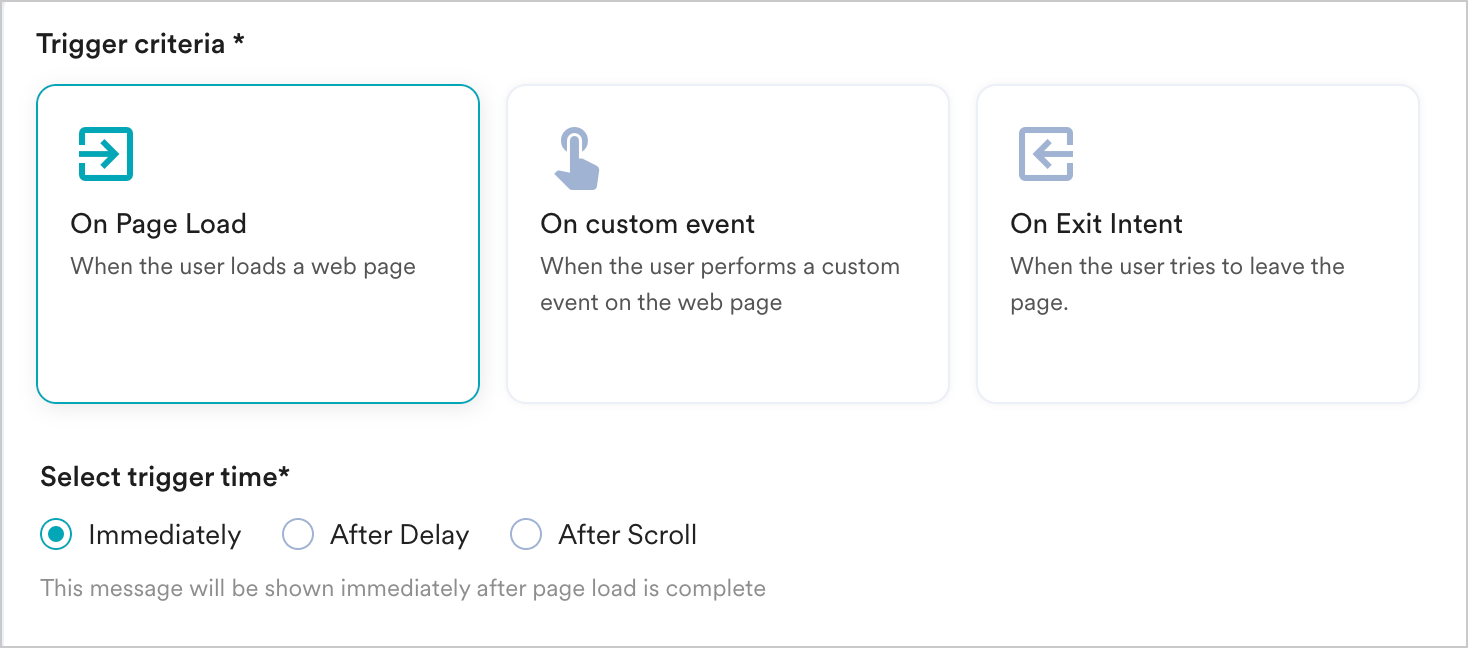
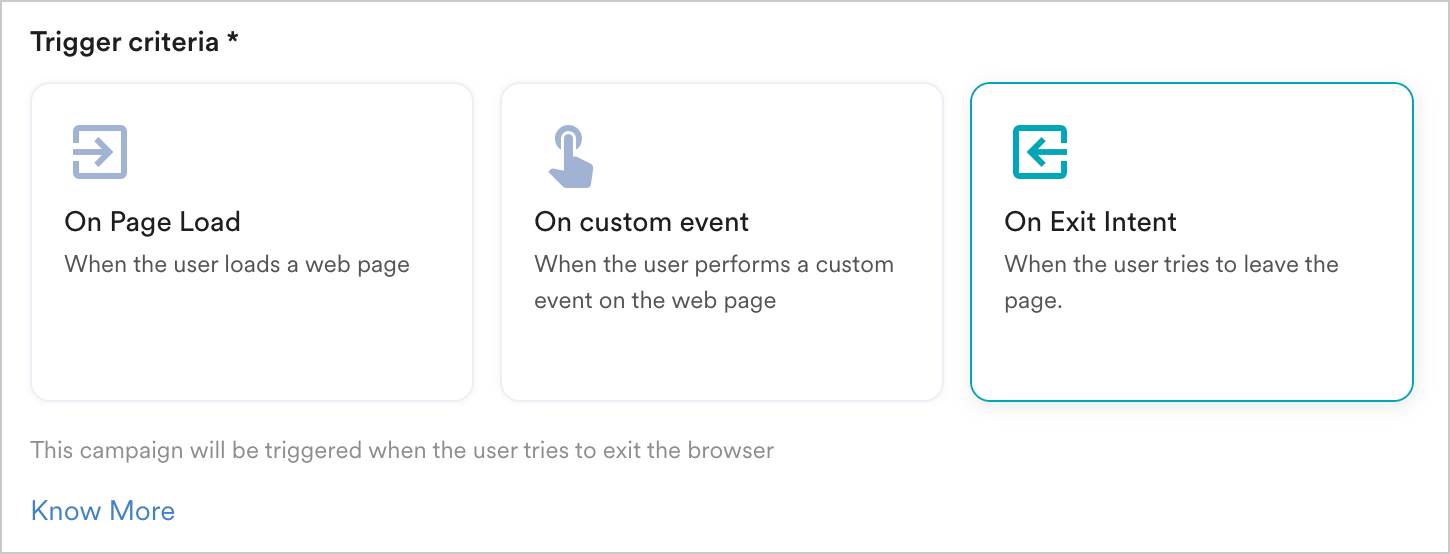
Choose this option if you want to show the message as soon as the page loads on your website for the user. The following options are available:
* **Immediately** - This option will show the OSM as soon as the page loads for the user.
* **After Delay** - This option will show the OSM with the specified delay. For example, if the delay is specified as 2 seconds, the OSM will be shown 2 seconds after the page load.
* **After Scroll** - This option will show the OSM once the user has scrolled the website by about x%. If you specify the scroll percentage as 30, the OSM will be displayed after the user has scrolled 30% of your website.
|
### **Trigger Criteria**
#### **On Page Load**
Choose this option if you want to show the message as soon as the page loads on your website for the user. The following options are available:
* **Immediately** - This option will show the OSM as soon as the page loads for the user.
* **After Delay** - This option will show the OSM with the specified delay. For example, if the delay is specified as 2 seconds, the OSM will be shown 2 seconds after the page load.
* **After Scroll** - This option will show the OSM once the user has scrolled the website by about x%. If you specify the scroll percentage as 30, the OSM will be displayed after the user has scrolled 30% of your website.
 #### **On Custom Event**
You can display the On-site messages when the user performs the custom event. You can send the message immediately or after a delay using the Trigger the message option.
#### **On Custom Event**
You can display the On-site messages when the user performs the custom event. You can send the message immediately or after a delay using the Trigger the message option.
 #### IF user
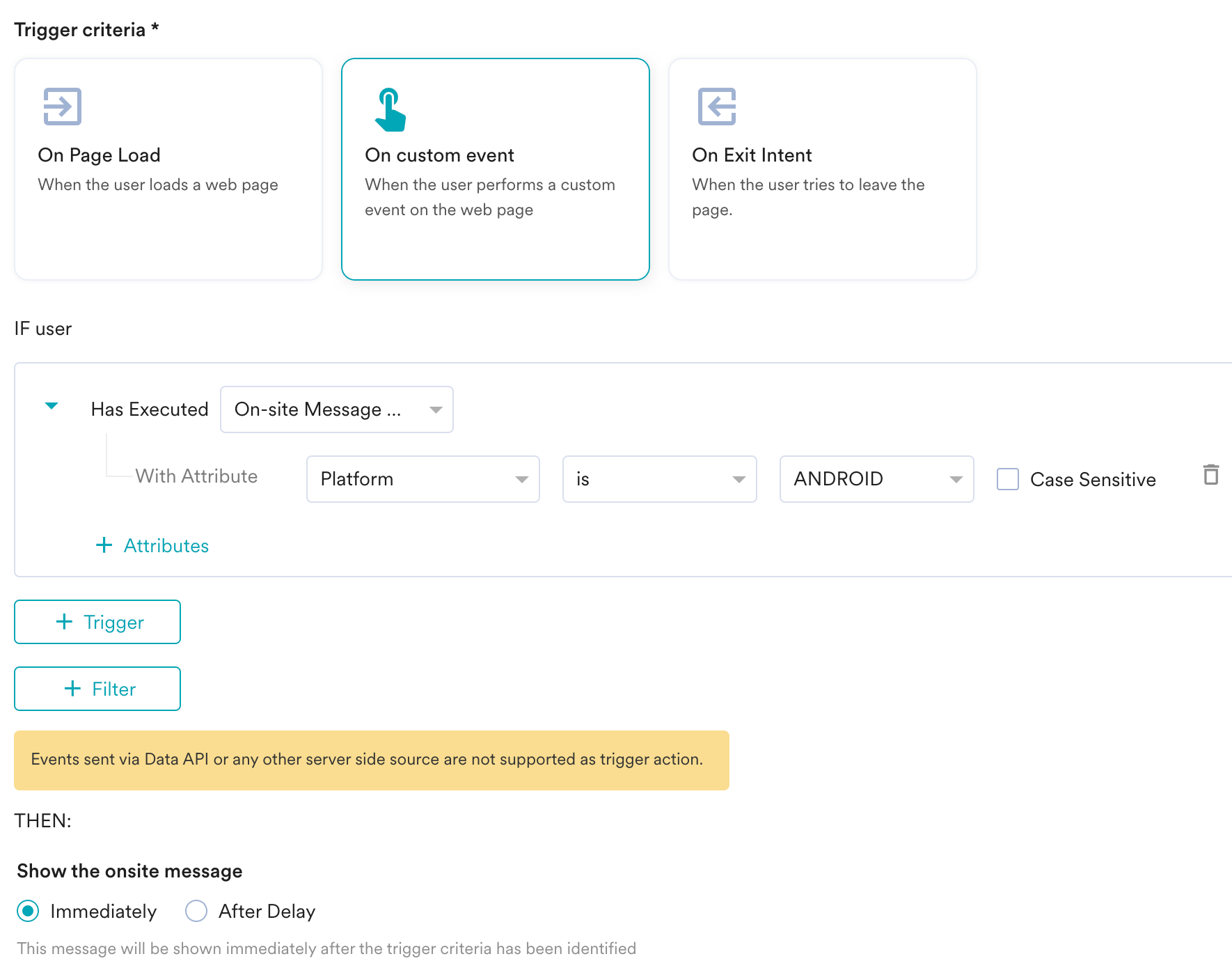
The **IF user**section allows you to select an event. In the case of a single event chosen in the IF condition, if a user performs this event, then the message will get sent. However, you can add multiple events and attributes along with the IF condition.
In the **IF user** section, do the following:
1. From the **Select an Event** drop-down, select the event.
2. You can also refine the event. To do so:
* Click the Attribute button to add attributes to the filter and select the logical drop-downs for the attribute.
* To add more attributes, do the following
* Click **+ Attribute** button
* Click *AND* or *OR*
* From the Attribute drop-down, select the respective attributes and the logical drop-downs for the selected attribute.
For instance, if you choose to select the event *User installs the app*, you can add an attribute called *App Version* to filter for users who installed a specific version of the app.
#### IF user
The **IF user**section allows you to select an event. In the case of a single event chosen in the IF condition, if a user performs this event, then the message will get sent. However, you can add multiple events and attributes along with the IF condition.
In the **IF user** section, do the following:
1. From the **Select an Event** drop-down, select the event.
2. You can also refine the event. To do so:
* Click the Attribute button to add attributes to the filter and select the logical drop-downs for the attribute.
* To add more attributes, do the following
* Click **+ Attribute** button
* Click *AND* or *OR*
* From the Attribute drop-down, select the respective attributes and the logical drop-downs for the selected attribute.
For instance, if you choose to select the event *User installs the app*, you can add an attribute called *App Version* to filter for users who installed a specific version of the app.
 #### AND then
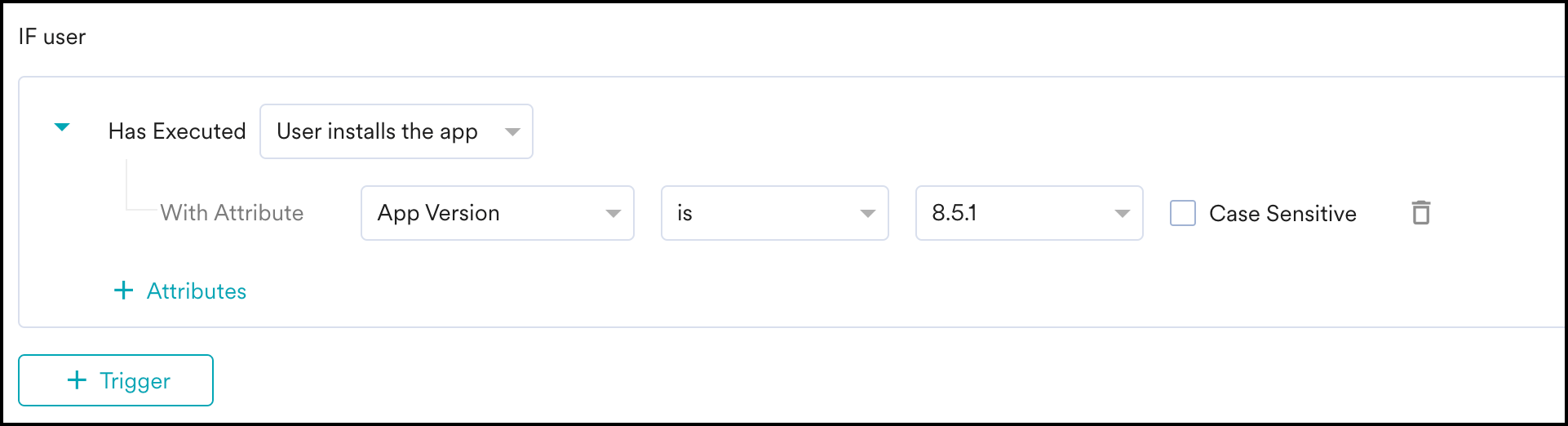
You can now have more customization with the **And/ Then** feature. In addition to the **+ Trigger**option, the **+** **Filter**button allows you to string multiple events together.
For instance, you can select the *On-site Message Clicked* event and then use the \*\*AND then \*\*option to add the *Added to Cart* event.
By doing this, the On-site message will be shown to users who have clicked on an On-site message campaign at least once and then proceeded to add an item to their cart at least once.
#### AND then
You can now have more customization with the **And/ Then** feature. In addition to the **+ Trigger**option, the **+** **Filter**button allows you to string multiple events together.
For instance, you can select the *On-site Message Clicked* event and then use the \*\*AND then \*\*option to add the *Added to Cart* event.
By doing this, the On-site message will be shown to users who have clicked on an On-site message campaign at least once and then proceeded to add an item to their cart at least once.
 You also get to define the time to wait before the event in the \*\*Filter \*\*condition is evaluated. Setting this limit to 15 minutes implies that the user has to perform the **Filter** event within 15 minutes of performing the first trigger event. In this example, the first event would be *On-site Message Clicked*.
* The maximum delay that you can set here is 24 hours, and the minimum delay is 1 minute.
You also get to define the time to wait before the event in the \*\*Filter \*\*condition is evaluated. Setting this limit to 15 minutes implies that the user has to perform the **Filter** event within 15 minutes of performing the first trigger event. In this example, the first event would be *On-site Message Clicked*.
* The maximum delay that you can set here is 24 hours, and the minimum delay is 1 minute.
 If you click on the + Filter button again, you can add another event to the trigger criteria. You get the option to choose *AND* or *OR*. Combine the two filter conditions by choosing *AND,* or use the *OR* to filter users if they perform any of the events within the time limit.
 #### THEN
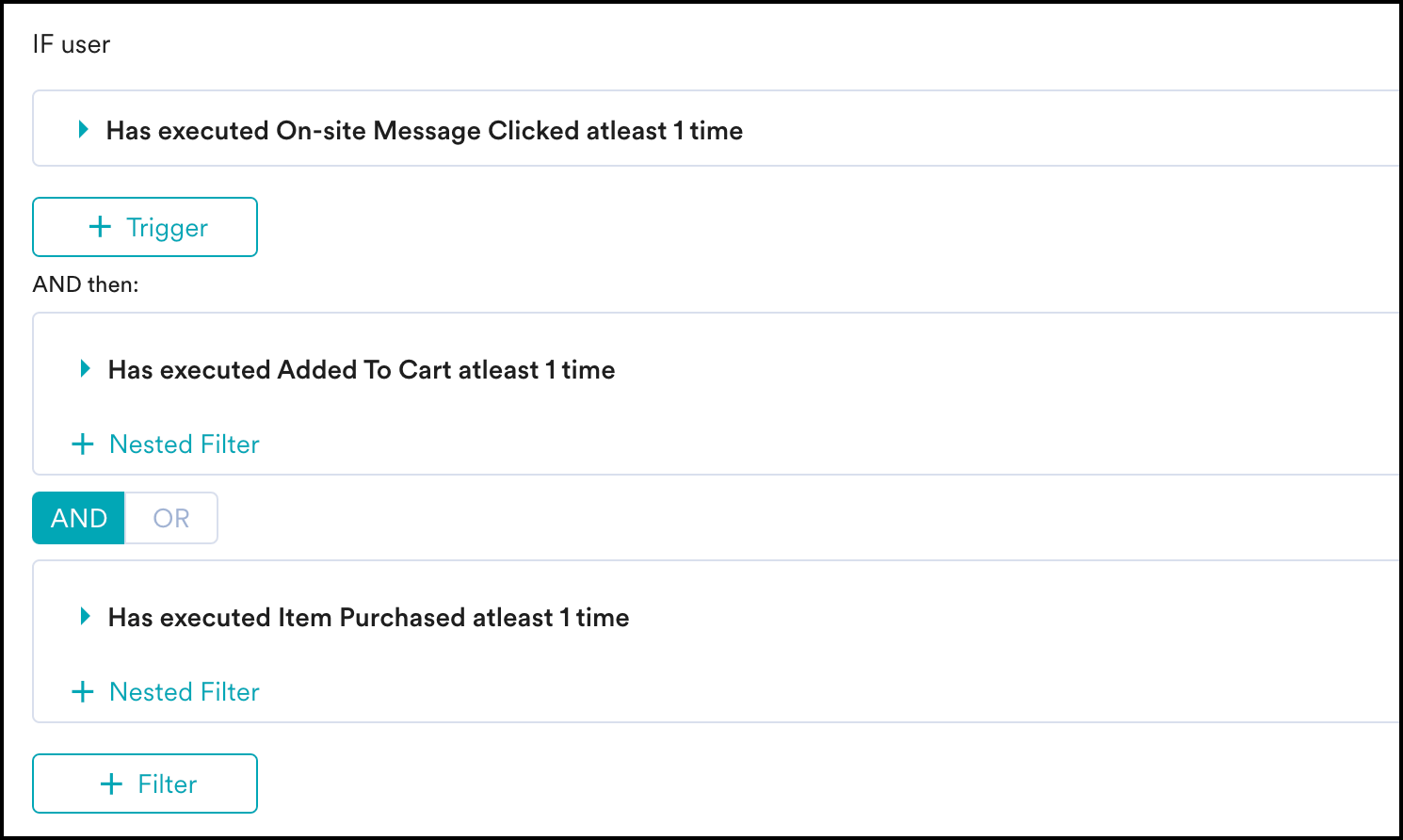
In the THEN section, under Trigger the message, select an option to define when to show the message. The available options are:
* **Immediately**: The message will be shown immediately after the trigger criteria have been identified.
* **After Delay**: The message will be shown after the defined delay. For example, if the delay is specified as 2 seconds, the OSM will be shown 2 seconds after the page load.
#### THEN
In the THEN section, under Trigger the message, select an option to define when to show the message. The available options are:
* **Immediately**: The message will be shown immediately after the trigger criteria have been identified.
* **After Delay**: The message will be shown after the defined delay. For example, if the delay is specified as 2 seconds, the OSM will be shown 2 seconds after the page load. 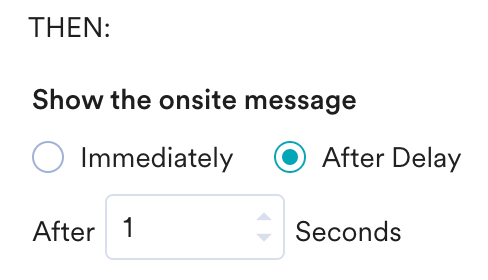 When After Delay is selected, a maximum delay of 1 day (86400 seconds) and a minimum of 1 second delay can be set.
**Trigger Criteria Summary**: The Trigger Criteria Summary will summarise the trigger on the basis of the events and attributes that you select, making it easier for you to understand the trigger criteria.
When After Delay is selected, a maximum delay of 1 day (86400 seconds) and a minimum of 1 second delay can be set.
**Trigger Criteria Summary**: The Trigger Criteria Summary will summarise the trigger on the basis of the events and attributes that you select, making it easier for you to understand the trigger criteria.
 #### **On Exit Intent**
Choose this option if you want to trigger a message when the user is trying to exit your website. For more information, refer to [Exit Intent Technology](/user-guide/campaigns-and-channels/on-site-message/create/exit-intent-technology).
#### **On Exit Intent**
Choose this option if you want to trigger a message when the user is trying to exit your website. For more information, refer to [Exit Intent Technology](/user-guide/campaigns-and-channels/on-site-message/create/exit-intent-technology).
 ### **Select Pages**
This section allows you to choose the web pages where you want to display a campaign to the user. You can select one of the following:
* **All pages**: This option would show the campaign on all website pages.
* **Specific pages**: This option would show the campaign on specific website pages. You can select the page you want to show or hide the campaign by defining the URL rules
### **Select Pages**
This section allows you to choose the web pages where you want to display a campaign to the user. You can select one of the following:
* **All pages**: This option would show the campaign on all website pages.
* **Specific pages**: This option would show the campaign on specific website pages. You can select the page you want to show or hide the campaign by defining the URL rules 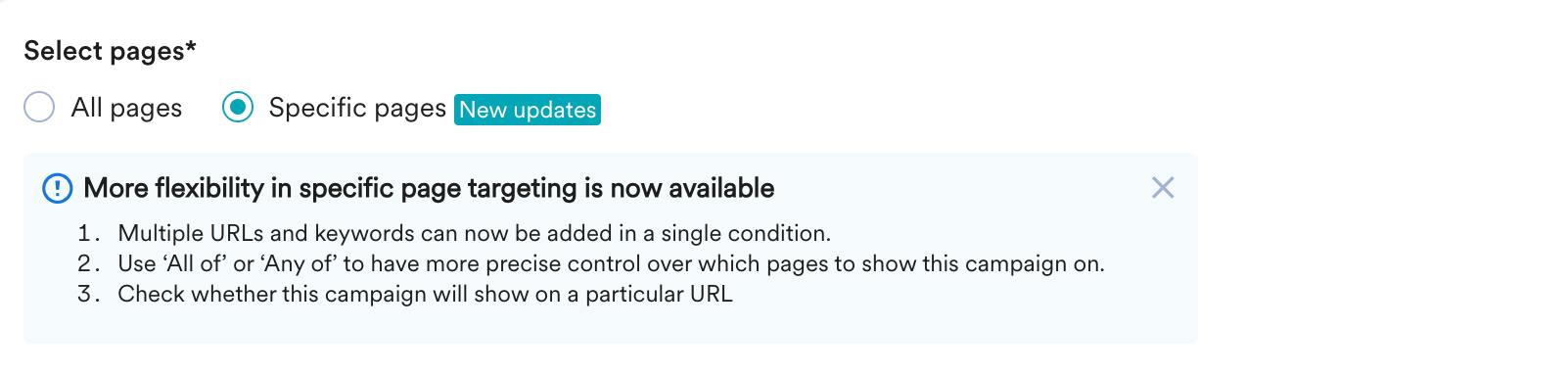 To show or hide your campaign on specific pages using the URL path, follow these steps:
1. Click **Specific pages**.
To show or hide your campaign on specific pages using the URL path, follow these steps:
1. Click **Specific pages**.  2. Under **If URL**, select any condition in the **Select Option** list, as shown below:
  The following table lists the available conditions:
| Conditions | Explanation |
| ------------------------- | -------------------------------------------------------------------------------------------------------------------------------------------------------------------------------------------------------------- |
| is | The pop-up is shown on any of the specific URL(s) mentioned in the condition, and the URL(s) must match exactly for the pop-up to appear. |
| is not | The pop-up is shown on any URL except those mentioned in the condition. The URL(s) must not match exactly for the pop-up to appear. |
| contains | The pop-up is shown on any URL that **contains** any of the specified text or strings mentioned in the condition. The URL does not need to match exactly but must include at least one of the specified texts. |
| contains (all of) | The pop-up is shown on any URL that **contains all of** the specified text or strings mentioned in the condition. The URL does not need to match exactly but must include all of the specified text. |
| does not contain | The pop-up is shown on any URL that **does not contain** any of the specified text or strings mentioned in the condition. The URL must exclude all of the specified texts for the pop-up to appear. |
| does not contain (all of) | The pop-up is shown on any URL that **does not containall of** the specified text or strings mentioned in the condition. The URL must exclude at least one of the specified texts for the pop-up to appear. |
| starts with | The pop-up is shown on any URL that **starts with** the specific text or string mentioned in the condition. The URL must begin with the specified text for the pop-up to appear. |
| ends with | The pop-up is shown on any URL that **ends with** the specific text or string mentioned in the condition. The URL must end with the specified text for the pop-up to appear. |
| does not starts with | The pop-up is shown on any URL that **does not start with** the specific text or string mentioned in the condition. The URL must not begin with the specified text for the pop-up to appear. |
| does not end with | The pop-up is shown on any URL that **does not end with** the specific text or string mentioned in the condition. The URL must not end with the specified text for the pop-up to appear. |
3. In the box adjacent to the **Select Option** list, enter one or more URLs as shown below:
The following table lists the available conditions:
| Conditions | Explanation |
| ------------------------- | -------------------------------------------------------------------------------------------------------------------------------------------------------------------------------------------------------------- |
| is | The pop-up is shown on any of the specific URL(s) mentioned in the condition, and the URL(s) must match exactly for the pop-up to appear. |
| is not | The pop-up is shown on any URL except those mentioned in the condition. The URL(s) must not match exactly for the pop-up to appear. |
| contains | The pop-up is shown on any URL that **contains** any of the specified text or strings mentioned in the condition. The URL does not need to match exactly but must include at least one of the specified texts. |
| contains (all of) | The pop-up is shown on any URL that **contains all of** the specified text or strings mentioned in the condition. The URL does not need to match exactly but must include all of the specified text. |
| does not contain | The pop-up is shown on any URL that **does not contain** any of the specified text or strings mentioned in the condition. The URL must exclude all of the specified texts for the pop-up to appear. |
| does not contain (all of) | The pop-up is shown on any URL that **does not containall of** the specified text or strings mentioned in the condition. The URL must exclude at least one of the specified texts for the pop-up to appear. |
| starts with | The pop-up is shown on any URL that **starts with** the specific text or string mentioned in the condition. The URL must begin with the specified text for the pop-up to appear. |
| ends with | The pop-up is shown on any URL that **ends with** the specific text or string mentioned in the condition. The URL must end with the specified text for the pop-up to appear. |
| does not starts with | The pop-up is shown on any URL that **does not start with** the specific text or string mentioned in the condition. The URL must not begin with the specified text for the pop-up to appear. |
| does not end with | The pop-up is shown on any URL that **does not end with** the specific text or string mentioned in the condition. The URL must not end with the specified text for the pop-up to appear. |
3. In the box adjacent to the **Select Option** list, enter one or more URLs as shown below:  **Information**
* You can manually add multiple URLs and keywords by pressing Enter.
* You can also copy and paste the list of URLs from CSV in the input box.
4. Click **+ Filter**.
5. Select the **And** or **Or** operator, and then select a condition in the **Select Option** list.
6. Enter the keywords within the box adjacent to the **Select Option** list.
**Information**
* You can manually add multiple URLs and keywords by pressing Enter.
* You can also copy and paste the list of URLs from CSV in the input box.
4. Click **+ Filter**.
5. Select the **And** or **Or** operator, and then select a condition in the **Select Option** list.
6. Enter the keywords within the box adjacent to the **Select Option** list.  7. To add multiple rules, repeat steps 4 through 6.
  8. To delete a specific rule, click the delete icon (
  ).
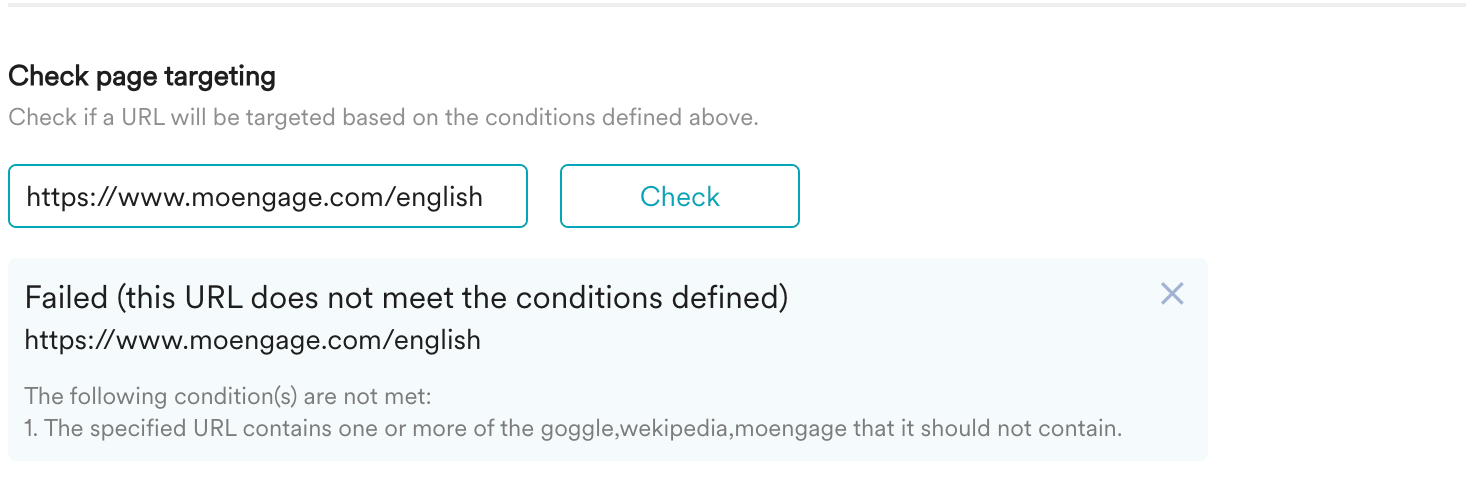
9. Enter the URL in the **Check page targeting** box to verify the provided URL meets the defined condition.
10. Click **Check**.
).
9. Enter the URL in the **Check page targeting** box to verify the provided URL meets the defined condition.
10. Click **Check**.  * If the provided URL meets the defined condition, a **Passed** notification is displayed as shown below
  * If the provided URL fails to meet the defined condition, a **Failed** notification is displayed, as shown below. Follow the error instructions specified in the notification.
  ### **Target audience**
This section contains segmentation filters that help you choose the target audience for your campaign. The following options are available:
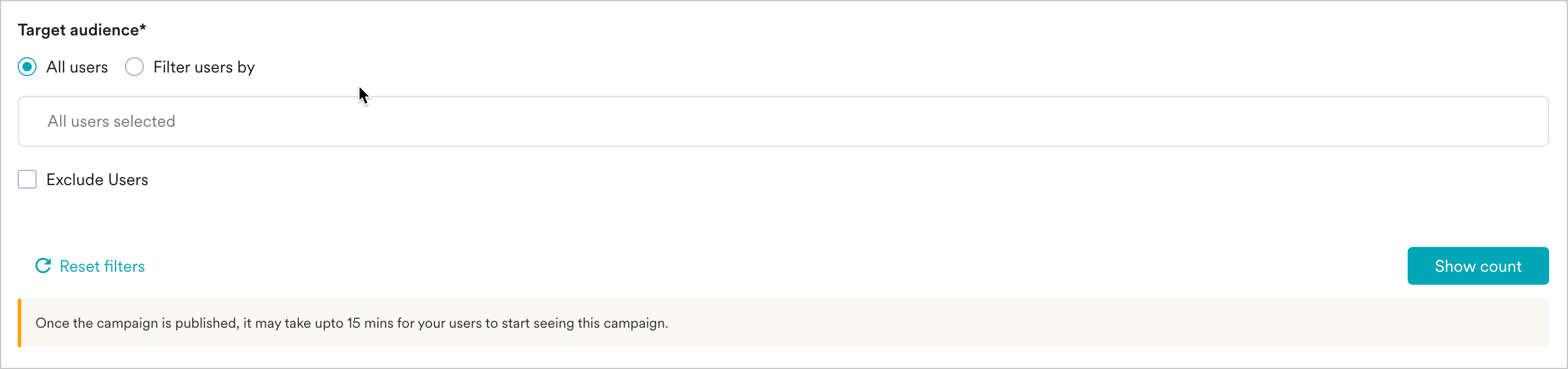
This filter option allows you to send the campaign to all the app users. When you use this option, you cannot add multiple filters.
### **Target audience**
This section contains segmentation filters that help you choose the target audience for your campaign. The following options are available:
This filter option allows you to send the campaign to all the app users. When you use this option, you cannot add multiple filters.
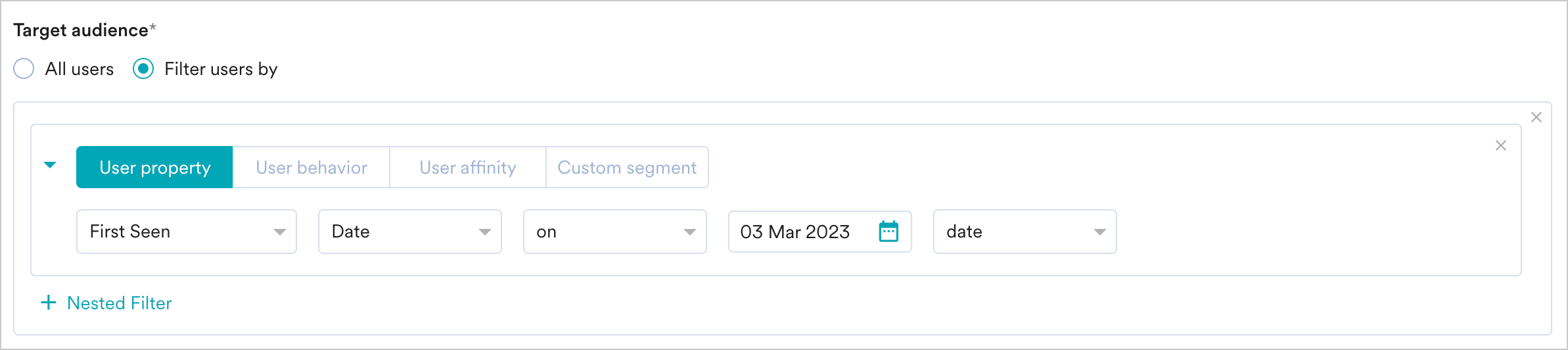
 This filter option allows you to target the users based on user properties such as first seen, last seen, city, and so on. Select the User property tab and do the following:
1. Select the desired attribute in the dropdown. This will enable the filters based on the attributes chosen. For example, attributes that are numbers can have filter conditions such as 'is equal to', 'is not equal to', 'is between', and so on, while String attributes will have different filters.
2. Provide the filter value(s) to create the desired user segment.
For more information, refer to [Create Segments](/user-guide/segment/segment-operations/rule-based-filter-segments).
This filter option allows you to target the users based on user properties such as first seen, last seen, city, and so on. Select the User property tab and do the following:
1. Select the desired attribute in the dropdown. This will enable the filters based on the attributes chosen. For example, attributes that are numbers can have filter conditions such as 'is equal to', 'is not equal to', 'is between', and so on, while String attributes will have different filters.
2. Provide the filter value(s) to create the desired user segment.
For more information, refer to [Create Segments](/user-guide/segment/segment-operations/rule-based-filter-segments).
 This filter option allows you to target the users based on the behavior of the user or event, such as app/site opened, viewed product, and so on. Select the User Behavior and do the following:
1. Select the execution condition and the desired user activity (event).
2. Provide event frequency and time duration for the event execution.
3. Click +Attributes and add an Event attribute with a filter condition.
4. Provide the filter value/s to create a rule.
For more information, refer to [Create Segments](/user-guide/segment/segment-operations/rule-based-filter-segments).
This filter option allows you to target the users based on the behavior of the user or event, such as app/site opened, viewed product, and so on. Select the User Behavior and do the following:
1. Select the execution condition and the desired user activity (event).
2. Provide event frequency and time duration for the event execution.
3. Click +Attributes and add an Event attribute with a filter condition.
4. Provide the filter value/s to create a rule.
For more information, refer to [Create Segments](/user-guide/segment/segment-operations/rule-based-filter-segments).
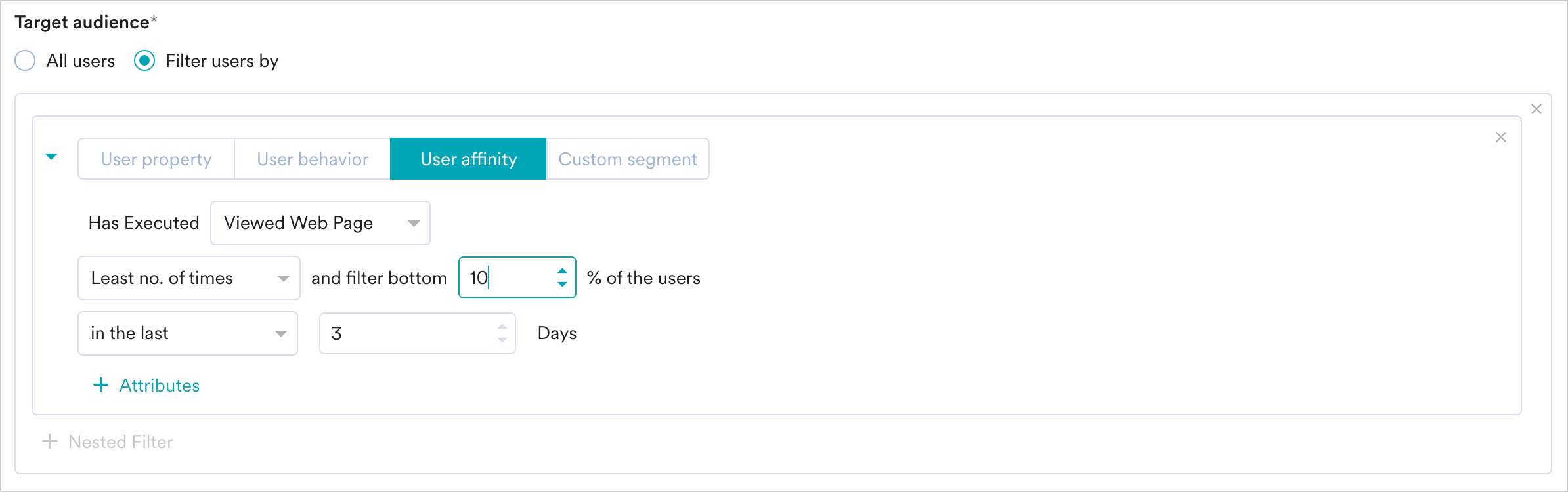
 This filter option allows you to target groups of users created based on the user performing an action with a specific attribute value. For more information, refer to User Affinity. Select User Affinity and do the following:
1. Select the desired user event or attribute.
2. Select the user affinity parameter from the following:
* **Predominantly**: Select affinity attribute with a filter condition and provide the affinity values
* **Minimum of**: Select affinity attribute with a filter condition and provide the affinity values
* **Most no. of times**: Type or use the arrows to provide the top or bottom percentage of users
* **Least no. of times**
3. Type or use the arrows to provide the top or bottom percentage of users Type or use the arrows to provide the time duration for the event execution.
4. Click the Attribute button to add more attributes to the filter.
This filter option allows you to target groups of users created based on the user performing an action with a specific attribute value. For more information, refer to User Affinity. Select User Affinity and do the following:
1. Select the desired user event or attribute.
2. Select the user affinity parameter from the following:
* **Predominantly**: Select affinity attribute with a filter condition and provide the affinity values
* **Minimum of**: Select affinity attribute with a filter condition and provide the affinity values
* **Most no. of times**: Type or use the arrows to provide the top or bottom percentage of users
* **Least no. of times**
3. Type or use the arrows to provide the top or bottom percentage of users Type or use the arrows to provide the time duration for the event execution.
4. Click the Attribute button to add more attributes to the filter.
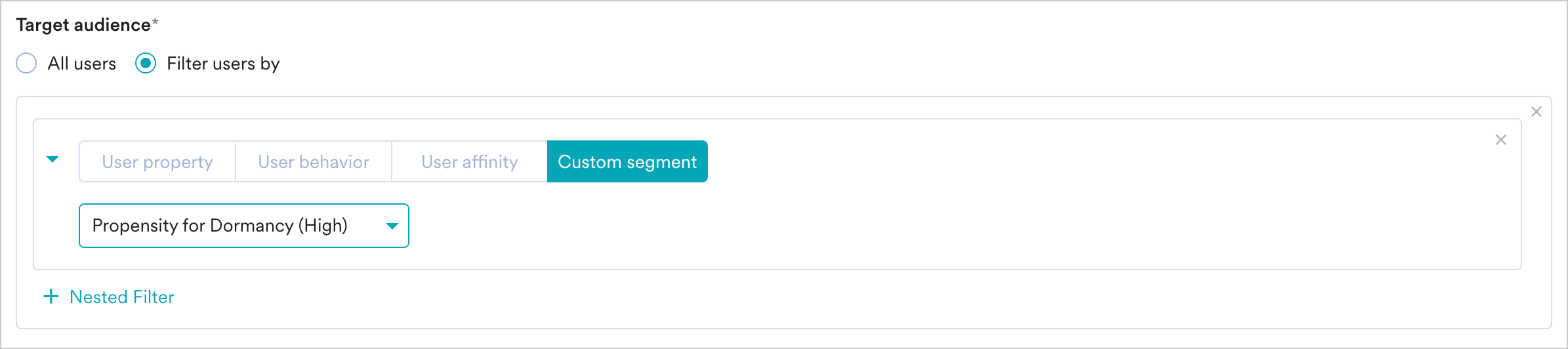
 This filter option allows you to select a Custom Segment as the target audience from the list of custom segments available. For more information, refer to [Custom Segments](/user-guide/segment/segment-operations/custom-segments).
 #### In-Session Attributes
In-session attributes allow you to group and target their users based on their actions within their current session on your website.
For instance, if a user is in India, you can show them a personalized pop-up that you created for users based in India. This will help deliver a personalized experience to them immediately in the same session.
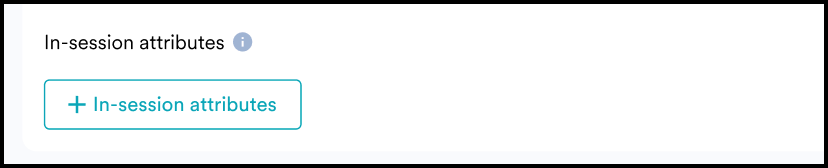
To add an In-session attribute, click on the **+ In-session attributes** button.
#### In-Session Attributes
In-session attributes allow you to group and target their users based on their actions within their current session on your website.
For instance, if a user is in India, you can show them a personalized pop-up that you created for users based in India. This will help deliver a personalized experience to them immediately in the same session.
To add an In-session attribute, click on the **+ In-session attributes** button.
 You can combine multiple in-session attributes together. You can also exclude users based on their in-session activity.
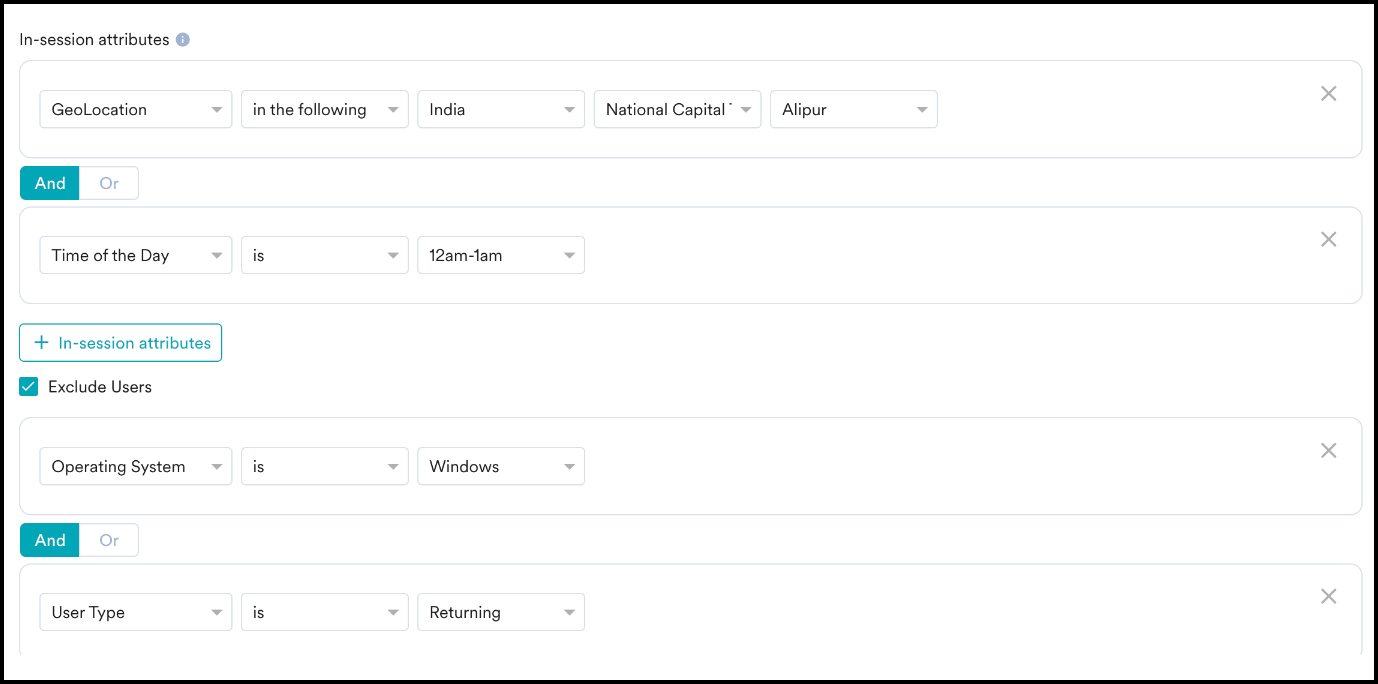 You can use the following in-session attributes with your In-app campaign:
1. **Query Parameter**: This field lets you segment users based on the query parameters in the URL. Typically, users would land on your personalized URL by clicking an advertisement on any Social Media platform.
* You can use UTM parameters like Source, Medium, Content, Campaign, etc., to segment users based on the source from where they are visiting, the campaign from which they've landed on this URL, and so on.
* UTM parameters like utm\_source, utm\_campaign, etc., are used to identify the campaigns driving users to websites. You can use UTM and custom parameters to segment users and personalize the website experience.
2. **User Type**: This field lets you segment users based on whether they are new or returning users. The Web SDK stores user details (*unique\_id*) for each user in the browser storage. If those details are present in the storage, the user is a returning user. If not, the user is a new user.
* Hence, if the browser cache is cleared, the user gets treated as new.
* **Note**:
* If two users are using the same device and user 2 logs in after user 1, they would be considered a *returning* *user*
* If a user logs in from the mobile browser and then logs in again from a desktop browser, the login from the desktop would be considered a *new user.*
3. **Day of the Week**: This field lets you segment users based on the day of the week on which they visit your website.
4. **Time of the Day**: This field lets you segment users based on the hour of the day on which they visit your website. You can choose from any of the one-hour slots in a day available in the dropdown.
5. **Geolocation**: This field lets you segment users based on the geolocation from where they visit your website. You can choose the Country, State/Region, and City where the user is located or exclude a specific Country.
6. **Device Type**: This field lets you segment users based on the device with which they visit your website. You can include or exclude one or a combination of the following: Mobile, Desktop, or Tablet.
7. **Operating System**: This field lets you segment users based on the Operating System of the device with which they visit your website. You can include or exclude one or a combination of the following: Android, iOS, Windows, Mac, Linux, or others.
8. **Browser Type**: This field lets you segment users based on the browser with which they visit your website. You can include or exclude one or a combination of the following: Chrome, Safari, Firefox, Opera, or others.
### Campaign Audience Limit
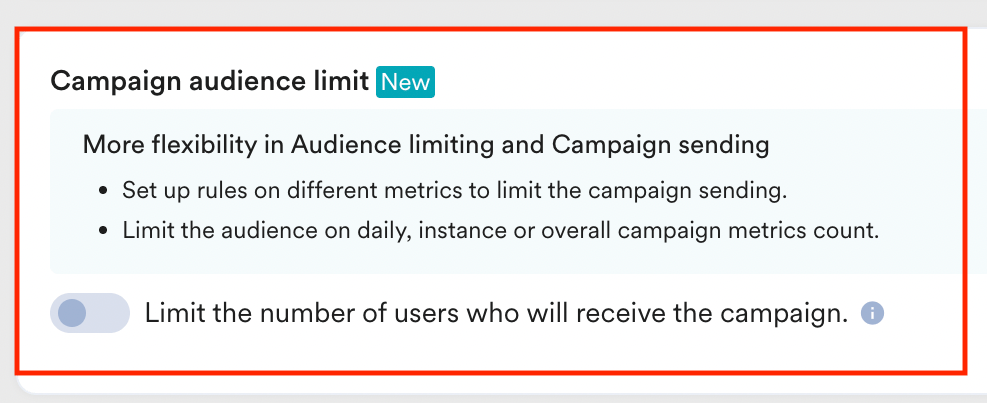
This feature empowers you to control campaign reach and expenditure by capping the number of users who receive it based on engagement metrics like sends, impressions, and conversions. It allows you to set total, daily, or instance-level limits to campaigns. For more information, refer to [Campaign Audience Limit.](/user-guide/settings/channels/delivery-controls/campaign-audience-limit)
You can use the following in-session attributes with your In-app campaign:
1. **Query Parameter**: This field lets you segment users based on the query parameters in the URL. Typically, users would land on your personalized URL by clicking an advertisement on any Social Media platform.
* You can use UTM parameters like Source, Medium, Content, Campaign, etc., to segment users based on the source from where they are visiting, the campaign from which they've landed on this URL, and so on.
* UTM parameters like utm\_source, utm\_campaign, etc., are used to identify the campaigns driving users to websites. You can use UTM and custom parameters to segment users and personalize the website experience.
2. **User Type**: This field lets you segment users based on whether they are new or returning users. The Web SDK stores user details (*unique\_id*) for each user in the browser storage. If those details are present in the storage, the user is a returning user. If not, the user is a new user.
* Hence, if the browser cache is cleared, the user gets treated as new.
* **Note**:
* If two users are using the same device and user 2 logs in after user 1, they would be considered a *returning* *user*
* If a user logs in from the mobile browser and then logs in again from a desktop browser, the login from the desktop would be considered a *new user.*
3. **Day of the Week**: This field lets you segment users based on the day of the week on which they visit your website.
4. **Time of the Day**: This field lets you segment users based on the hour of the day on which they visit your website. You can choose from any of the one-hour slots in a day available in the dropdown.
5. **Geolocation**: This field lets you segment users based on the geolocation from where they visit your website. You can choose the Country, State/Region, and City where the user is located or exclude a specific Country.
6. **Device Type**: This field lets you segment users based on the device with which they visit your website. You can include or exclude one or a combination of the following: Mobile, Desktop, or Tablet.
7. **Operating System**: This field lets you segment users based on the Operating System of the device with which they visit your website. You can include or exclude one or a combination of the following: Android, iOS, Windows, Mac, Linux, or others.
8. **Browser Type**: This field lets you segment users based on the browser with which they visit your website. You can include or exclude one or a combination of the following: Chrome, Safari, Firefox, Opera, or others.
### Campaign Audience Limit
This feature empowers you to control campaign reach and expenditure by capping the number of users who receive it based on engagement metrics like sends, impressions, and conversions. It allows you to set total, daily, or instance-level limits to campaigns. For more information, refer to [Campaign Audience Limit.](/user-guide/settings/channels/delivery-controls/campaign-audience-limit)
 ### Control Groups
This section contains information about control groups for the campaign. To exclude users in the control groups, do the following:
| | |
| ---------------------------------------------------------------------------------------------------------------------------------------------------------------------------------------------------------------------------------------------------------------------------------------------------------------------------------------------------------------------------------------------------------------------------------------------------------------------------------------------------------------------------------------- | ------------------------------------------------------------------------------------------------------------------------------------------------------------------------------------------------------------------------------------------------------------------------------------------------------------------------------------------------------------------------------------------------------------------------------------------------------------------------------------------------------------------------------------------------------------------------------------------------------------------------------------------------------------------------------------------------------------------------------------------------------------------------------------------------------------------------------------------------------------------------------------------------------------------------------------------------------------------------------------------------------------------------------------------------------------------------------------------------------------------------------------------------------------------------------------------------------------------------------------------------------------------------------------------------------------------------------------------------------------------------------------------------------------------------------------------------------------------------------------------------------------------------------------------------------------------------------------------------------ |
|
### Control Groups
This section contains information about control groups for the campaign. To exclude users in the control groups, do the following:
| | |
| ---------------------------------------------------------------------------------------------------------------------------------------------------------------------------------------------------------------------------------------------------------------------------------------------------------------------------------------------------------------------------------------------------------------------------------------------------------------------------------------------------------------------------------------- | ------------------------------------------------------------------------------------------------------------------------------------------------------------------------------------------------------------------------------------------------------------------------------------------------------------------------------------------------------------------------------------------------------------------------------------------------------------------------------------------------------------------------------------------------------------------------------------------------------------------------------------------------------------------------------------------------------------------------------------------------------------------------------------------------------------------------------------------------------------------------------------------------------------------------------------------------------------------------------------------------------------------------------------------------------------------------------------------------------------------------------------------------------------------------------------------------------------------------------------------------------------------------------------------------------------------------------------------------------------------------------------------------------------------------------------------------------------------------------------------------------------------------------------------------------------------------------------------------------ |
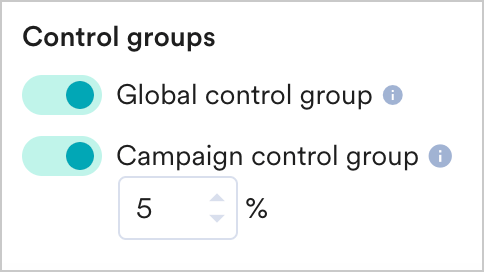
| - Enable the Global control group toggle to exclude the users in the control group from the campaign's target segment.
- Enable the Campaign control group to exclude a fixed percentage of users in the campaign from the campaign's target segment. Specify the percentage of users to be excluded from the campaign in the box below the toggle.
- For more information about control groups, refer to [Control Groups](/user-guide/campaigns-and-channels/getting-started/introduction/control-groups).
|  |
Click **Next** or use the tabs on the top of the **Create Campaign** navigation to move to Step 2.
## Step 2: Define Content
You can create the content for your OSM campaigns using two options here:
1. Create the content using the new editor
2. Create content using the old editor
The following template types are available:
* **Banner** - these templates can be used to show banners on the website while customers browse or perform actions on it. Banners can be used for the following:
* show countdown timers
* show cookie information and seek customer content for the same
* show notifications with information about seasonal sales and ongoing offers
* **Nudge** - these templates can be used to show non-intrusive information to customers. Nudges can be used for the following:
* show countdown timers
* add a call to action information
* show notifications
* ask for subscriptions and opt-ins
* used for lead generation
* used to capture feedback at the time of delivery of service/product
* **Popup** - these templates can be used to communicate with customers in an intrusive manner. Popups can be used for the following:
* display information about sales and direct customers to relevant web pages
* seek feedback from customers
* lead generation
* preventing customers from churning
| Template Type | When to use it? |
| -------------------- | ----------------------------------------------------------------------------------------------------------------------------------------------------------------------------------------------------------------------------------------------------------------------------------------------------------- |
| Popups | Use popups for intrusive communication |
| Nudges | use nudges for non-intrusive communication |
| Banner at the Top | Use banners at the top to show offers. These templates will move the contents of the page down and occupy the space at the top of the website (the banner will not overlap with the content) if the *Push the contents of the page down* display option is enabled and the website's headers aren't sticky. |
| Banner at the Bottom | Use banners at the top to show information to the visitor/customer about policies and seek their consent. These templates cover the entire width of the screen and will overlap with the content while being non-intrusive. |
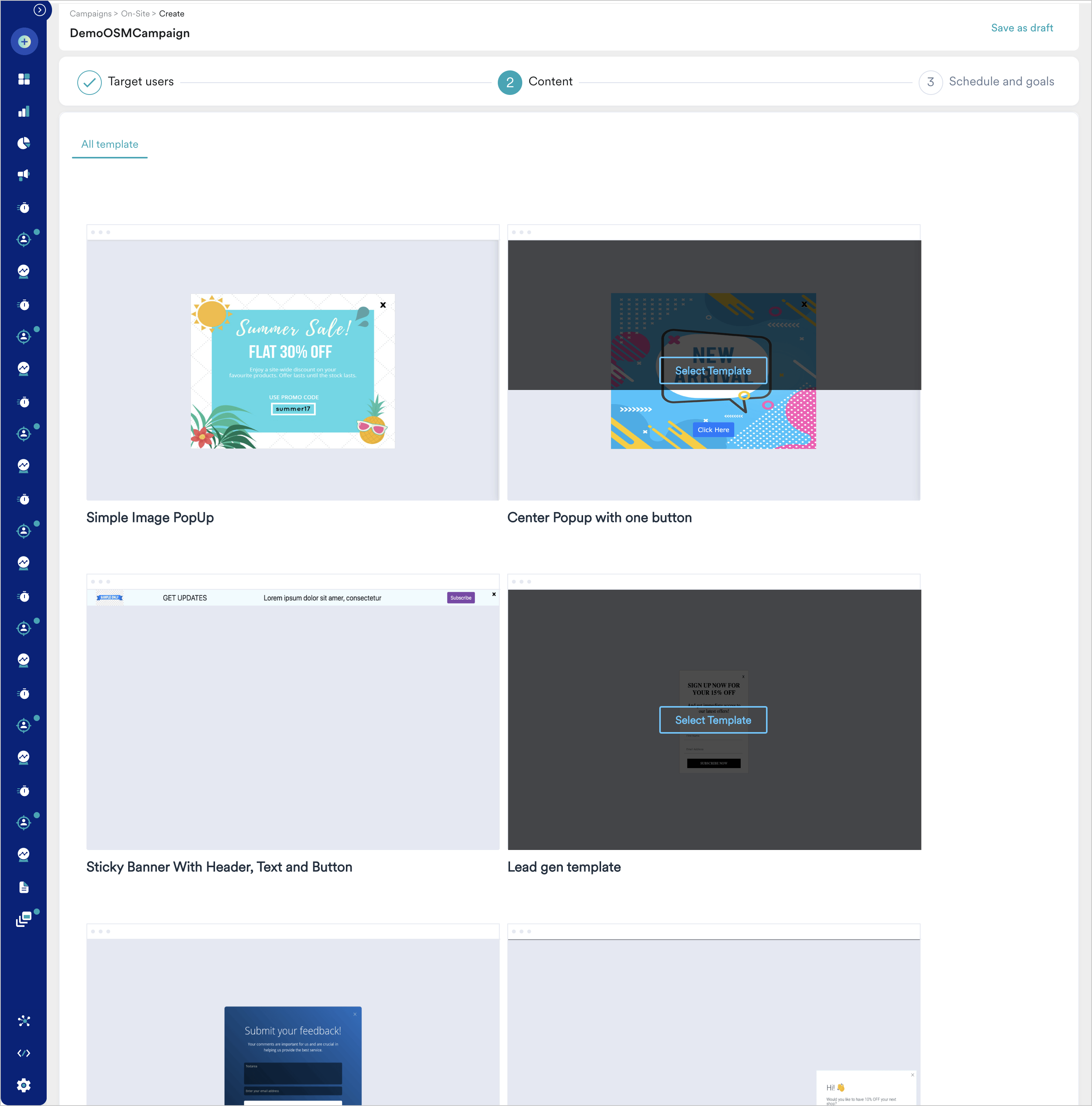
You can create your on-site message using a blank template or choose from the available templates for each template type. You can also look up a template using the search option or click on the template of your choice.
**Blank Template** - Hover on the Blank Template and click Popup to create a popup template from scratch. Click on the '+' icon to open the editor and add elements to the template. For more information, refer to [OSM Editor.](/user-guide/campaigns-and-channels/on-site-message/create/osm-editor)
**Other Templates**- The following template types are available: Offers and Announcements Templates, Lead Generation Templates, and Typeform Survey Templates. For more information, refer to [OSM Templates](/user-guide/campaigns-and-channels/on-site-message/create/osm-templates).
Once you've loaded the template of your choice, the template loads in the OSM editor. The following options are available:
**Add elements** - You can add elements to the template by clicking the
|
Click **Next** or use the tabs on the top of the **Create Campaign** navigation to move to Step 2.
## Step 2: Define Content
You can create the content for your OSM campaigns using two options here:
1. Create the content using the new editor
2. Create content using the old editor
The following template types are available:
* **Banner** - these templates can be used to show banners on the website while customers browse or perform actions on it. Banners can be used for the following:
* show countdown timers
* show cookie information and seek customer content for the same
* show notifications with information about seasonal sales and ongoing offers
* **Nudge** - these templates can be used to show non-intrusive information to customers. Nudges can be used for the following:
* show countdown timers
* add a call to action information
* show notifications
* ask for subscriptions and opt-ins
* used for lead generation
* used to capture feedback at the time of delivery of service/product
* **Popup** - these templates can be used to communicate with customers in an intrusive manner. Popups can be used for the following:
* display information about sales and direct customers to relevant web pages
* seek feedback from customers
* lead generation
* preventing customers from churning
| Template Type | When to use it? |
| -------------------- | ----------------------------------------------------------------------------------------------------------------------------------------------------------------------------------------------------------------------------------------------------------------------------------------------------------- |
| Popups | Use popups for intrusive communication |
| Nudges | use nudges for non-intrusive communication |
| Banner at the Top | Use banners at the top to show offers. These templates will move the contents of the page down and occupy the space at the top of the website (the banner will not overlap with the content) if the *Push the contents of the page down* display option is enabled and the website's headers aren't sticky. |
| Banner at the Bottom | Use banners at the top to show information to the visitor/customer about policies and seek their consent. These templates cover the entire width of the screen and will overlap with the content while being non-intrusive. |
You can create your on-site message using a blank template or choose from the available templates for each template type. You can also look up a template using the search option or click on the template of your choice.
**Blank Template** - Hover on the Blank Template and click Popup to create a popup template from scratch. Click on the '+' icon to open the editor and add elements to the template. For more information, refer to [OSM Editor.](/user-guide/campaigns-and-channels/on-site-message/create/osm-editor)
**Other Templates**- The following template types are available: Offers and Announcements Templates, Lead Generation Templates, and Typeform Survey Templates. For more information, refer to [OSM Templates](/user-guide/campaigns-and-channels/on-site-message/create/osm-templates).
Once you've loaded the template of your choice, the template loads in the OSM editor. The following options are available:
**Add elements** - You can add elements to the template by clicking the  icon on the left pane of the editor.
**Editing/Styling Options** -Click the
icon on the left pane of the editor.
**Editing/Styling Options** -Click the  icon at the top right corner of the template to add the following styling elements to the template:
| Editing/Styling Option | Description |
| --------------------------------------------- | ----------------------------------------------------------------------------------------------------------------------------------------------------------------------------------------------------------------------------------------------------------------------------------------------------------------------------------------------------------------------------------------------------------------------------------------------------------------------------------------------------------------------------------------------------------------------------------------------------------------------------------------------------------------------------------------------------------------------------------------------------------------------------------------------------------------------------------------------------------------------------------------------------------------------------------------------------------------------------------------------------------------------------------------------------------------------------------------------------------------------------------------------------------------------------------------------------------------------------------------------------------------------------------------------------------------------------------------------------------------------------------------------------------------------------------------------------------------------------------------------------------------------------------------------------------------------------------------------------------------------------------------------------------------------------------------------------------------------------------------------------------------------------------------------------------------------------------------------------------------------------------------------------------------------------------------------------------------------------------------------------------------------------------------------------------------------------------------------------------------------------------------------------------------------------------------------------------------------------------------------------------------------------------------------------------------------------------------------------------------------------------------------------------------------------------------------------------------------------------------------------------------------------------------------------------------------------------------------------------------------------------------------------------------------------------------------------------------------------------------------------------------------------------------------------------------------------------------------------------------------------------------------------------------------------------------------------------------------------------------------------------------------------------------------------------------------------------------------------------------------------------------------------------------------------------------------------------------------------------------------------------------------------------------------------------------------------------------------------------------------------------------------------------------------------------------------------------------------------------------------------------------------------------------------------------------------------------------------------------------------------------------------------- |
| Display Close Button | This option lets you specify whether there should be a close button for users to dismiss the message. By default, the close button is displayed. You can hide it by turning off the toggle. |
| Background Image/Filters | This option lets you add background images to the message. To upload an image, click on
icon at the top right corner of the template to add the following styling elements to the template:
| Editing/Styling Option | Description |
| --------------------------------------------- | ----------------------------------------------------------------------------------------------------------------------------------------------------------------------------------------------------------------------------------------------------------------------------------------------------------------------------------------------------------------------------------------------------------------------------------------------------------------------------------------------------------------------------------------------------------------------------------------------------------------------------------------------------------------------------------------------------------------------------------------------------------------------------------------------------------------------------------------------------------------------------------------------------------------------------------------------------------------------------------------------------------------------------------------------------------------------------------------------------------------------------------------------------------------------------------------------------------------------------------------------------------------------------------------------------------------------------------------------------------------------------------------------------------------------------------------------------------------------------------------------------------------------------------------------------------------------------------------------------------------------------------------------------------------------------------------------------------------------------------------------------------------------------------------------------------------------------------------------------------------------------------------------------------------------------------------------------------------------------------------------------------------------------------------------------------------------------------------------------------------------------------------------------------------------------------------------------------------------------------------------------------------------------------------------------------------------------------------------------------------------------------------------------------------------------------------------------------------------------------------------------------------------------------------------------------------------------------------------------------------------------------------------------------------------------------------------------------------------------------------------------------------------------------------------------------------------------------------------------------------------------------------------------------------------------------------------------------------------------------------------------------------------------------------------------------------------------------------------------------------------------------------------------------------------------------------------------------------------------------------------------------------------------------------------------------------------------------------------------------------------------------------------------------------------------------------------------------------------------------------------------------------------------------------------------------------------------------------------------------------------------------------------------- |
| Display Close Button | This option lets you specify whether there should be a close button for users to dismiss the message. By default, the close button is displayed. You can hide it by turning off the toggle. |
| Background Image/Filters | This option lets you add background images to the message. To upload an image, click on  icon and upload the image in the Image section. You can add filters to the image using the Filters tab. |
| Background Color | This option lets you add a background color to the message. By default, the background is black. You can change it by clicking on the
icon and upload the image in the Image section. You can add filters to the image using the Filters tab. |
| Background Color | This option lets you add a background color to the message. By default, the background is black. You can change it by clicking on the  icon and choosing the background color of your choice. |
| Popup positioning | This option lets you move the popup bidirectionally. To move the popup through the length of the page, click the
icon and choosing the background color of your choice. |
| Popup positioning | This option lets you move the popup bidirectionally. To move the popup through the length of the page, click the  icon and position the popup at the top, middle, or bottom of the webpage. To move the popup through the width of the page, click the
  icon and position the popup to the left, center, or right end of the website. |
| Customizing the width and height of the popup | This option lets you specify the width and height of the popup. To do so, click the
icon and position the popup to the left, center, or right end of the website. |
| Customizing the width and height of the popup | This option lets you specify the width and height of the popup. To do so, click the  icon, and specify the width and height. |
| Adding CSS options to the popup | This option lets you add a custom CSS to add customized styling options for your message. To do so, click the icon, and click the
icon, and specify the width and height. |
| Adding CSS options to the popup | This option lets you add a custom CSS to add customized styling options for your message. To do so, click the icon, and click the  icon to add the CSS code and custom attributes. |
 * **Preview Options -** Click the
  icon on the left panel to preview the template. There are three preview options:
* **Desktop** - This option shows you how the template will look on a website opened in a desktop browser.
* **Tablet** - This option shows you how the template will look on a website opened in a tablet browser.
* **Mobile** - This option shows you how the template will look on a website opened in a mobile browser.
You can create your on-site message from the available templates. For more information, refer to [On-site Messaging Templates(old editor)](/user-guide/campaigns-and-channels/on-site-message/create/osm-templates-html-editor).
icon on the left panel to preview the template. There are three preview options:
* **Desktop** - This option shows you how the template will look on a website opened in a desktop browser.
* **Tablet** - This option shows you how the template will look on a website opened in a tablet browser.
* **Mobile** - This option shows you how the template will look on a website opened in a mobile browser.
You can create your on-site message from the available templates. For more information, refer to [On-site Messaging Templates(old editor)](/user-guide/campaigns-and-channels/on-site-message/create/osm-templates-html-editor).
 ### Display Settings
The following options are available:
| Display Setting | Template Type | Description |
| -------------------------------------------------------------------------- | --------------------------- | ---------------------------------------------------------------------------------------------------------------------------------------------------------------------------------------------------------------------------------------------------------------- |
| *Show this campaign if other campaign is already displayed on the webpage* | Popups, Nudges, and Banners | This checkbox, when checked, lets you show this OSM campaign even if another OSM has already been displayed on the page. Note: For this to work, the campaign events that trigger the OSMs should be different. |
| *Push the contents of the page down* | Banner | This checkbox, when checked, allows the banner to occupy the space at the top of the website without overlapping with the website's content. For this to work, the banner chosen should be positioned at the top, and the website's headers shouldn't be sticky. |
Test campaigns enable previewing the campaign on a test URL to ensure that your on-site message is conveyed in the manner that you desire. You can test the campaign you created by entering a test URL. Click *Test* to display the on-site message on the URL. For more information, refer to [Testing your OSM campaign](/user-guide/campaigns-and-channels/on-site-message/create/testing-your-on-site-messaging-campaigns).
### Display Settings
The following options are available:
| Display Setting | Template Type | Description |
| -------------------------------------------------------------------------- | --------------------------- | ---------------------------------------------------------------------------------------------------------------------------------------------------------------------------------------------------------------------------------------------------------------- |
| *Show this campaign if other campaign is already displayed on the webpage* | Popups, Nudges, and Banners | This checkbox, when checked, lets you show this OSM campaign even if another OSM has already been displayed on the page. Note: For this to work, the campaign events that trigger the OSMs should be different. |
| *Push the contents of the page down* | Banner | This checkbox, when checked, allows the banner to occupy the space at the top of the website without overlapping with the website's content. For this to work, the banner chosen should be positioned at the top, and the website's headers shouldn't be sticky. |
Test campaigns enable previewing the campaign on a test URL to ensure that your on-site message is conveyed in the manner that you desire. You can test the campaign you created by entering a test URL. Click *Test* to display the on-site message on the URL. For more information, refer to [Testing your OSM campaign](/user-guide/campaigns-and-channels/on-site-message/create/testing-your-on-site-messaging-campaigns).
 ## Step 3: Scheduling and Goals
This section contains the following:
* [Delivery Schedule](#delivery-schedule) - Choose when the campaign should be delivered to your users.
* [Conversion Goals](#conversion-goals) - Choose the conversion goals and revenue metrics to be tracked for the campaign.
* [Campaign Priority and Delivery Controls](#campaign-priority-and-delivery-controls)- Choose the priority of the campaign and choose the global and local delivery control options, such as auto dismiss, the minimum delay between notifications, and the frequency of messages to be shown.
### **Delivery Schedule**
The following delivery schedule options are available for OSM Campaigns:
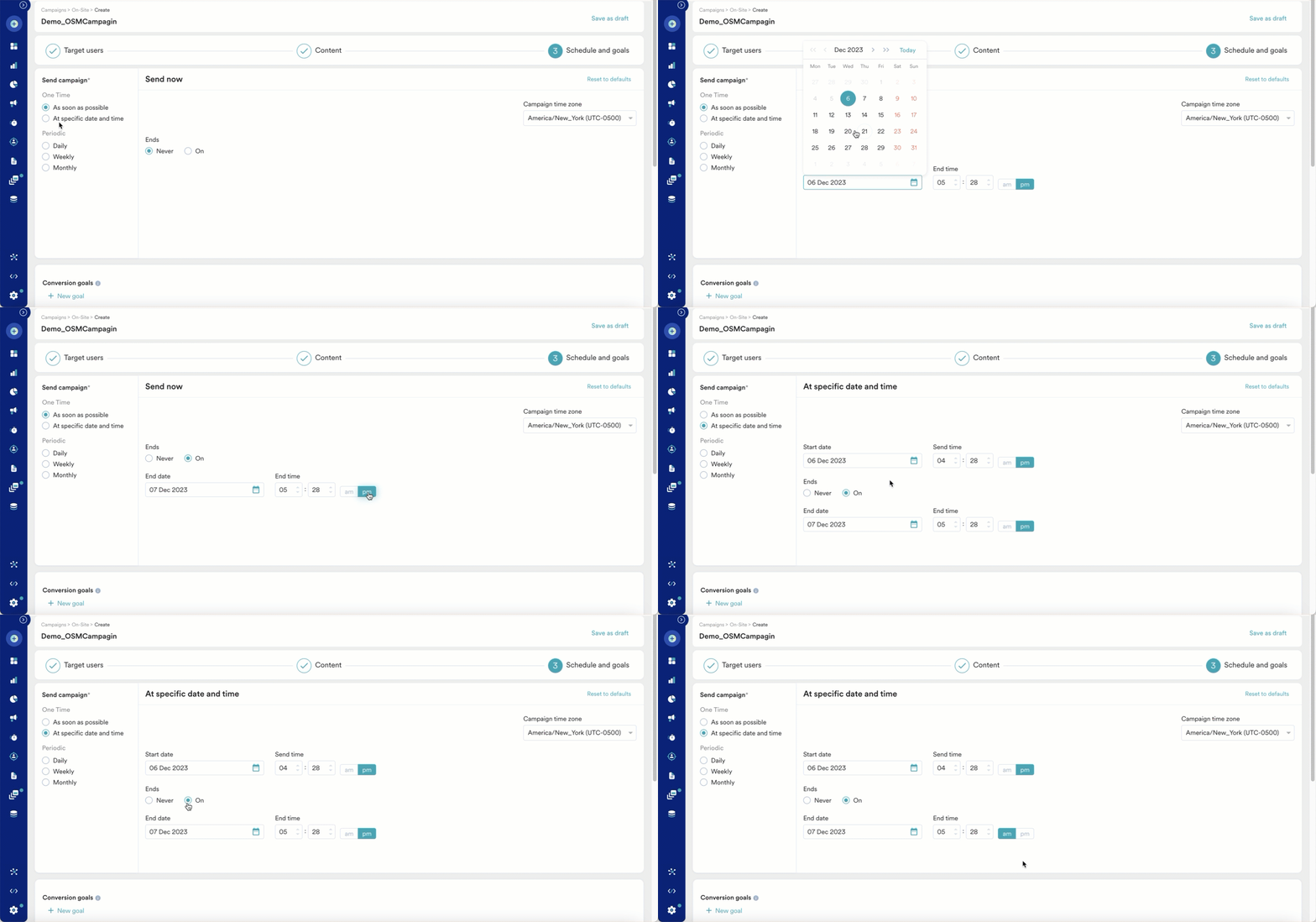
Choose this option to send the campaign immediately or at a specified time to the target users.
| Field | Action |
| --------------------------------- | --------------------------------------------------------------------------------------------------------------------------------------------------------------------------------------------------------------------------------------------------------------------------------------------------------------------------------------------------------------------------------------------------------------------------------------------------------------------------------------------------------------------------------------------------------------------------------------------------------------------------------------------------------------------------------------------------------------------------------------------------------------------------------------------------------------------------------------------------------------------- |
| **As soon as possible** | Send the campaign immediately to the target users. The following options are available:
## Step 3: Scheduling and Goals
This section contains the following:
* [Delivery Schedule](#delivery-schedule) - Choose when the campaign should be delivered to your users.
* [Conversion Goals](#conversion-goals) - Choose the conversion goals and revenue metrics to be tracked for the campaign.
* [Campaign Priority and Delivery Controls](#campaign-priority-and-delivery-controls)- Choose the priority of the campaign and choose the global and local delivery control options, such as auto dismiss, the minimum delay between notifications, and the frequency of messages to be shown.
### **Delivery Schedule**
The following delivery schedule options are available for OSM Campaigns:
Choose this option to send the campaign immediately or at a specified time to the target users.
| Field | Action |
| --------------------------------- | --------------------------------------------------------------------------------------------------------------------------------------------------------------------------------------------------------------------------------------------------------------------------------------------------------------------------------------------------------------------------------------------------------------------------------------------------------------------------------------------------------------------------------------------------------------------------------------------------------------------------------------------------------------------------------------------------------------------------------------------------------------------------------------------------------------------------------------------------------------------- |
| **As soon as possible** | Send the campaign immediately to the target users. The following options are available: - **Ends** - the time at which the campaign should end. There are two options here: *Never* and *Ends On*. The *Never* option can be used for campaigns that need to be run on a periodic basis for the foreseeable future. For campaigns that have an end date, you can use the *Ends On* option and specify the *End Date* and *End Time*.
|
| **At a particular date and time** | Send the campaign at the specified time, time zone, or predicted time. This section helps you send the campaign on a specific date and time and contains the following fields: - **Campaign timezone** - the timezone in which the campaign should be sent.
- **Start Date** - the date on which the campaign should be sent.
- **Send Time** - the time at which the campaign should be sent. Select am or pm depending on when the time of day at which the campaign should be sent.
- **Ends** - the time at which the campaign should end. There are two options here: *Never* and *Ends On*. The *Never* option can be used for campaigns that need to be run on a periodic basis for the foreseeable future. For campaigns that have an end date, you can use the *Ends On* option and specify the *End Date* and *End Time*.
|
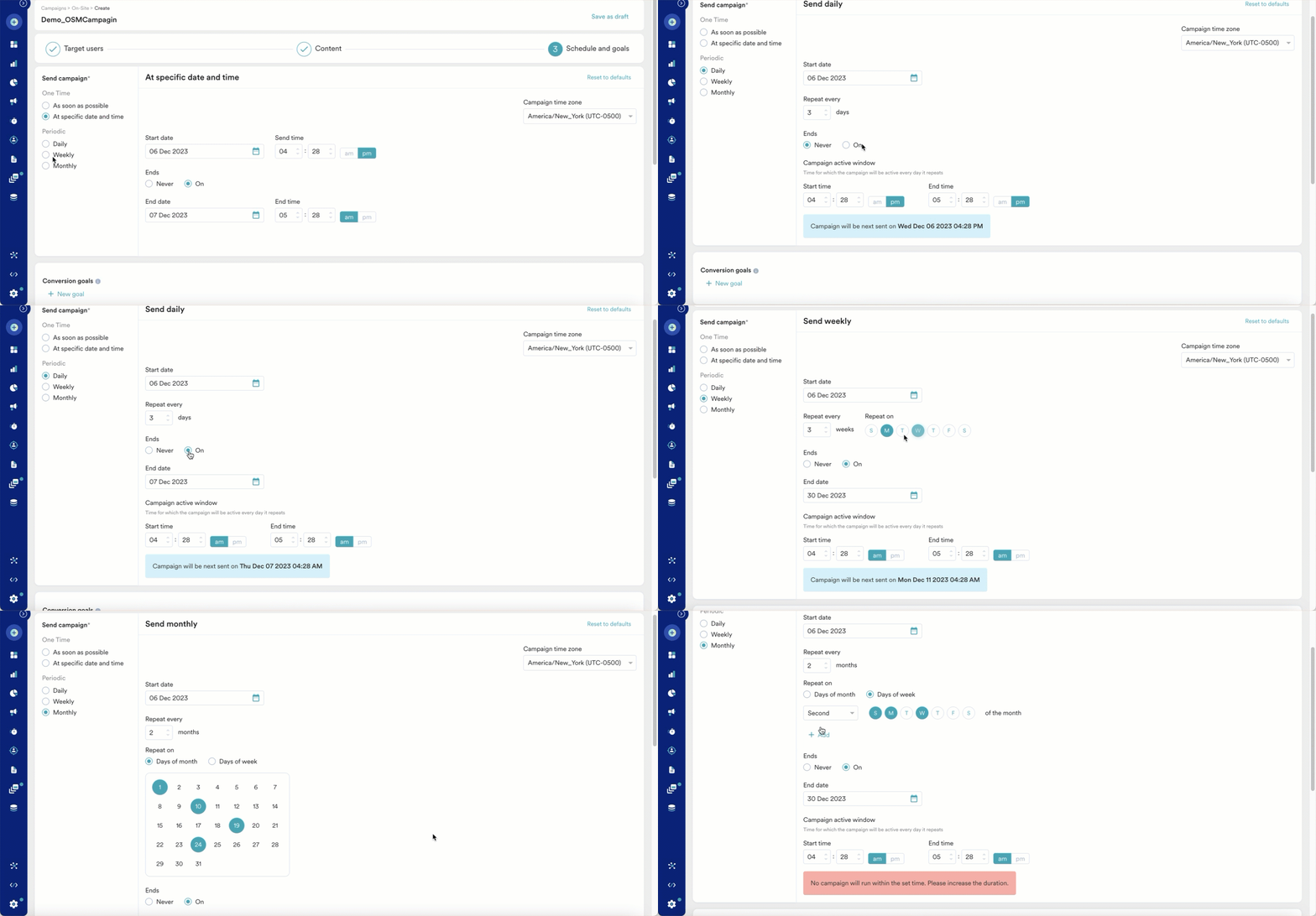
 Choose this option to send the campaign periodically on a specified date and time. The following fields are available in this section:
* **Campaign time zone**: the timezone in which the campaign should be sent.
* **Start date**: the date on which the campaign should be sent.
* **Send time**: the time at which the campaign should be sent. Select am or pm depending on the time of day at which the campaign should be sent.
* **Periodic**: the periodicity of the campaign. You can choose from the following options available on the left of the screen:
| Periodicity | Description |
| ----------- | ----------------------------------------------------------------------------------------------------------------------------------------------------------------------------------------------------------------------------------------------------------------------------------------------------------------------------------------------------------------------------------------------------------------------------------------------------------------------------------------------------------------------------------------------------------------------------------------------------------------------------------------------------------------------------------------------------------------------------------------------------------------------------------------------------------------------------------------------------------------------------------------------------------------------------------------------------------------------------------------------------------------------------------------------------------------------------------------------------------------------------------------------------------------------------------------------------------------------------------------- |
| Daily | **Repeat every**: This option allows you to specify the number of days after which the campaign should be repeated. |
| Weekly | **Repeat every**: This option allows you to specify the number of weeks for which the campaign should be repeated.
Choose this option to send the campaign periodically on a specified date and time. The following fields are available in this section:
* **Campaign time zone**: the timezone in which the campaign should be sent.
* **Start date**: the date on which the campaign should be sent.
* **Send time**: the time at which the campaign should be sent. Select am or pm depending on the time of day at which the campaign should be sent.
* **Periodic**: the periodicity of the campaign. You can choose from the following options available on the left of the screen:
| Periodicity | Description |
| ----------- | ----------------------------------------------------------------------------------------------------------------------------------------------------------------------------------------------------------------------------------------------------------------------------------------------------------------------------------------------------------------------------------------------------------------------------------------------------------------------------------------------------------------------------------------------------------------------------------------------------------------------------------------------------------------------------------------------------------------------------------------------------------------------------------------------------------------------------------------------------------------------------------------------------------------------------------------------------------------------------------------------------------------------------------------------------------------------------------------------------------------------------------------------------------------------------------------------------------------------------------------- |
| Daily | **Repeat every**: This option allows you to specify the number of days after which the campaign should be repeated. |
| Weekly | **Repeat every**: This option allows you to specify the number of weeks for which the campaign should be repeated.
**Repeat on**: This option allows you to specify the day(s) of the week on which the campaign should be sent (For example, if you wish to send the campaign every Monday, Wednesday, and Friday, select these days in this option). |
| Monthly | **Repeat every**: This option allows you to specify the number of months for which the campaign should be repeated.
**Repeat on**: This option allows you to do the following: - Days of month: Choose this option for repeating campaigns that are date-specific. Select the date(s) of the month the campaign should be sent (For example, to send the campaign on the 5th and the 25th of a month, select the 5th and 25th in the calendar widget.). **Note**: If the selected date(s) does not exist in the month specified (as it is a shorter month), a campaign will be sent on the last date. (For example, if the 30th and 31st are selected and the month is February, one campaign would be sent on the 28th).
- Days of week: Choose this option to specify the day(s) of the week on which the campaign should be sent (For example, if you wish to send the campaign every Monday, Wednesday, and Friday, select these days in this option). **Note**: In case of a day of the week not existing in a month (for example, fifth Saturday), the campaign would be skipped for that instance. And in case of overlap (for example, 4th Monday and last Monday), only one instance would be sent.
|
* **Ends:** the date on which the campaign should end. The following options are available:
* **Never**: the campaign runs daily.
* **On**: the campaign ends on the end date specified in the **End Date** field.
* **Campaign active window**: the time duration for which the campaign will be active for the set periodicity. For example, if the campaign were to be shown to the user daily, the campaign active window setting determines the time interval during the day the campaign will be active. If this interval were set between 6 PM and 8 PM for a campaign with daily periodicity, the campaign will be shown every day to users from 6 - 8 PM. If the campaign were active twice a week, the campaign active window setting determines the time duration when the campaign will be shown to the user during the days on which the campaign would be active. The following fields are available to set the campaign active window:
* **Start time**: the time at which the campaign will be triggered for the user.
* **End time**: the time duration post which the campaign will not be shown to the user irrespective of whether the campaign is set to be active on the specifed day.
 ### Conversion Goals
You can add conversion goals to track the business metrics for your campaigns. You can track up to five conversion goals. You can choose any app event as a conversion goal activity and set more than one conversion goal. The first goal will be treated as a primary goal.
For example, if you want to track the number of customers who've purchased an iPhone after your campaign was sent. (Event - purchase event, Product - iPhone). Your conversion goal set-up might look similar to the image shown below with the following details:
* **Goal Name** - *iPhonePurchase*
* **App Event you wish to track** - *Made Purchase*
* **Event Attribute/Property** - *product* is *event attribute/property*
* **Value of Event Attribute/Property** - *iPhone*
### Conversion Goals
You can add conversion goals to track the business metrics for your campaigns. You can track up to five conversion goals. You can choose any app event as a conversion goal activity and set more than one conversion goal. The first goal will be treated as a primary goal.
For example, if you want to track the number of customers who've purchased an iPhone after your campaign was sent. (Event - purchase event, Product - iPhone). Your conversion goal set-up might look similar to the image shown below with the following details:
* **Goal Name** - *iPhonePurchase*
* **App Event you wish to track** - *Made Purchase*
* **Event Attribute/Property** - *product* is *event attribute/property*
* **Value of Event Attribute/Property** - *iPhone*
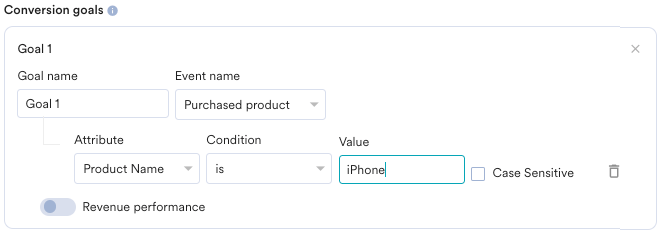 With multiple conversion goals, you can track more than one business metric or visualize a funnel for your user actions. For example, if you want to check the following, you can do so with multiple conversion goals.
* How many users have viewed the product page?
* How many of them added that product to the cart?
* How many of them made a successful order?
With MoEngage, you can track the revenue generated by your campaigns. For example, you can track the revenue generated by your product after sending a communication. To track revenue performance, enable the *Revenue Performance* toggle for the conversion goal for which you want to track the revenue.
| | |
| ---------------------------------------------------------------------------------------------------------------------------------------------------------------------------------------------------------------------------------------------------------------------------------------------------------------------------------------------------------------------------------------------------- | -------------------------------------------------------------------------------------------------------------------------------------------------------------------------------------------------------------------------------------------------------------------------------------------------------------------------------------------------------------------------------------------------------------------------------------------------------------------------------------------------------------------------------------------------------------------------------------------------------------------------------------------------------------------------------------------------------------------------------------------------------------------------------------------------------------------------------------------------------------------------------------------------------------------------------------------------------------------------------------------------------------------------------------------------------------------------------------------------------------------------------------------------------------------------------------------------------------------------------------------------------------------------------------------------------------------------------------------------------------------------------------------------------------------------------------------------------------------------------------------------------------------------------------------------------------------------------------------------------------------- |
| In the example here, to track revenue for **\_orderSuccessful \_**events, the *Revenue performance* toggle needs to be enabled. After choosing the goal, you can select the numeric attribute that captures the order's total monetary value. In the example below, ***cartValue*** contains the total order value. You can also choose the currency in which your monetary value is being reported. |
With multiple conversion goals, you can track more than one business metric or visualize a funnel for your user actions. For example, if you want to check the following, you can do so with multiple conversion goals.
* How many users have viewed the product page?
* How many of them added that product to the cart?
* How many of them made a successful order?
With MoEngage, you can track the revenue generated by your campaigns. For example, you can track the revenue generated by your product after sending a communication. To track revenue performance, enable the *Revenue Performance* toggle for the conversion goal for which you want to track the revenue.
| | |
| ---------------------------------------------------------------------------------------------------------------------------------------------------------------------------------------------------------------------------------------------------------------------------------------------------------------------------------------------------------------------------------------------------- | -------------------------------------------------------------------------------------------------------------------------------------------------------------------------------------------------------------------------------------------------------------------------------------------------------------------------------------------------------------------------------------------------------------------------------------------------------------------------------------------------------------------------------------------------------------------------------------------------------------------------------------------------------------------------------------------------------------------------------------------------------------------------------------------------------------------------------------------------------------------------------------------------------------------------------------------------------------------------------------------------------------------------------------------------------------------------------------------------------------------------------------------------------------------------------------------------------------------------------------------------------------------------------------------------------------------------------------------------------------------------------------------------------------------------------------------------------------------------------------------------------------------------------------------------------------------------------------------------------------------- |
| In the example here, to track revenue for **\_orderSuccessful \_**events, the *Revenue performance* toggle needs to be enabled. After choosing the goal, you can select the numeric attribute that captures the order's total monetary value. In the example below, ***cartValue*** contains the total order value. You can also choose the currency in which your monetary value is being reported. | 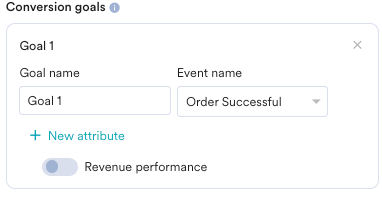 |
| | |
| --------------------------------------------------------------------------------------------------------------------------------------------------------------------------------------------------------------------------------------------------------------------- | ---------------------------------------------------------------------------------------------------------------------------------------------------------------------------------------------------------------------------------------------------------------------------------------------------------------------------------------------------------------------------------------------------------------------------------------------------------------------------------------------------------------------------------------------------------------------------------------------------------------------------------------------------------------------------------------------------------------------------------------------------------------------------------------------------------------------------------------------------------------------------------------------------------------------------------------------------------------------------------------------------------------------------------------------------------------------------------------------------------------------------------------------------------------------------------------------------------------------------------------------------------------------------------------------------------------------------------------------------------------------------------------------------------------------------------------------------------------------------------------------------------------------------------------------------------------------------------------------------------- |
| After you choose the goal, you can choose the numeric attribute that captures the total monetary value of the order. In the example, ***cartValue*** contains the total order value. You can also choose the currency in which your monetary value is being reported. |
|
| | |
| --------------------------------------------------------------------------------------------------------------------------------------------------------------------------------------------------------------------------------------------------------------------- | ---------------------------------------------------------------------------------------------------------------------------------------------------------------------------------------------------------------------------------------------------------------------------------------------------------------------------------------------------------------------------------------------------------------------------------------------------------------------------------------------------------------------------------------------------------------------------------------------------------------------------------------------------------------------------------------------------------------------------------------------------------------------------------------------------------------------------------------------------------------------------------------------------------------------------------------------------------------------------------------------------------------------------------------------------------------------------------------------------------------------------------------------------------------------------------------------------------------------------------------------------------------------------------------------------------------------------------------------------------------------------------------------------------------------------------------------------------------------------------------------------------------------------------------------------------------------------------------------------------- |
| After you choose the goal, you can choose the numeric attribute that captures the total monetary value of the order. In the example, ***cartValue*** contains the total order value. You can also choose the currency in which your monetary value is being reported. | 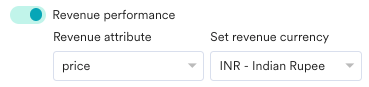 |
| | |
| -------------------------------------------------------------------------------------------------------------------------------------------------------------------------------------------------------------------------------------------------------------------------------------------------------------------------- | ----------------------------------------------------------------------------------------------------------------------------------------------------------------------------------------------------------------------------------------------------------------------------------------------------------------------------------------------------------------------------------------------------------------------------------------------------------------------------------------------------------------------------------------------------------------------------------------------------------------------------------------------------------------------------------------------------------------------------------------------------------------------------------------------------------------------------------------------------------------------------------------------------------------------------------------------------------------------------------------------------------------------------------------------------------------------------------------------------------------------------------------------------------------------------------------------------------------------------------------------------------------------------------------------------------------------------------------------------------------------------------------------------------------------------------------------------------------------------------------------------------------------------------------------------------------------------------------------------------- |
| **Set Attribution window** - You can set an attribution window ( a time period or window calculated from the time the user has received the campaign for which you want to attribute the conversion goals to a specific campaign.) As a default, it is set for 36 hours. Say, for the example above, we set it to 5 hours. |
|
| | |
| -------------------------------------------------------------------------------------------------------------------------------------------------------------------------------------------------------------------------------------------------------------------------------------------------------------------------- | ----------------------------------------------------------------------------------------------------------------------------------------------------------------------------------------------------------------------------------------------------------------------------------------------------------------------------------------------------------------------------------------------------------------------------------------------------------------------------------------------------------------------------------------------------------------------------------------------------------------------------------------------------------------------------------------------------------------------------------------------------------------------------------------------------------------------------------------------------------------------------------------------------------------------------------------------------------------------------------------------------------------------------------------------------------------------------------------------------------------------------------------------------------------------------------------------------------------------------------------------------------------------------------------------------------------------------------------------------------------------------------------------------------------------------------------------------------------------------------------------------------------------------------------------------------------------------------------------------------- |
| **Set Attribution window** - You can set an attribution window ( a time period or window calculated from the time the user has received the campaign for which you want to attribute the conversion goals to a specific campaign.) As a default, it is set for 36 hours. Say, for the example above, we set it to 5 hours. | 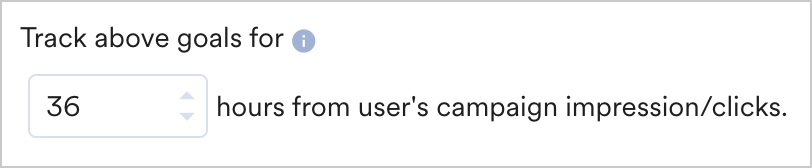 |
### **Campaign Priority and Delivery Controls**
This section contains the following options:
* **Campaign Priority** - Set one of the following campaign priorities: Critical, High, Medium, Normal, and Low. The campaign with the higher priority will be shown when a user is eligible to see two campaigns at the same time. In case both campaigns are of the same priority, the campaign created recently will be shown first.
* **Global Delivery Control** - This section lets you specify if you can *Ignore global minimum delay* set for the On-site messaging channel. Enable this toggle to ignore the settings for the minimum delay set for on-site messages.
|
### **Campaign Priority and Delivery Controls**
This section contains the following options:
* **Campaign Priority** - Set one of the following campaign priorities: Critical, High, Medium, Normal, and Low. The campaign with the higher priority will be shown when a user is eligible to see two campaigns at the same time. In case both campaigns are of the same priority, the campaign created recently will be shown first.
* **Global Delivery Control** - This section lets you specify if you can *Ignore global minimum delay* set for the On-site messaging channel. Enable this toggle to ignore the settings for the minimum delay set for on-site messages.
 * **Local Delivery Controls** - This section contains options that let you specify the delivery controls that pertain to this campaign. The following options are available here:
* **Maximum times to show a message** - lets you specify the maximum number of times to show the on-site message from the same campaign for a user. This is tracked using the **On-site Message Shown** event in the User Profile. For example, if the maximum times to show a message is turned off initially when the campaign is published and later edited to one time. If a user was shown the message already before editing the campaign and the user visits the site again, they will not be shown the message again as the **On-site Message Shown** would be available in their User Profile already and the message will not be shown to them again.
* **Minimum delay between 2 messages on this campaign** - lets you specify the minimum time gap between two on-site messages from the same campaign.
* **Auto dismiss message after 'x' seconds** - lets you specify the time after which the on-site message will be removed from the URL.
* **Local Delivery Controls** - This section contains options that let you specify the delivery controls that pertain to this campaign. The following options are available here:
* **Maximum times to show a message** - lets you specify the maximum number of times to show the on-site message from the same campaign for a user. This is tracked using the **On-site Message Shown** event in the User Profile. For example, if the maximum times to show a message is turned off initially when the campaign is published and later edited to one time. If a user was shown the message already before editing the campaign and the user visits the site again, they will not be shown the message again as the **On-site Message Shown** would be available in their User Profile already and the message will not be shown to them again.
* **Minimum delay between 2 messages on this campaign** - lets you specify the minimum time gap between two on-site messages from the same campaign.
* **Auto dismiss message after 'x' seconds** - lets you specify the time after which the on-site message will be removed from the URL. 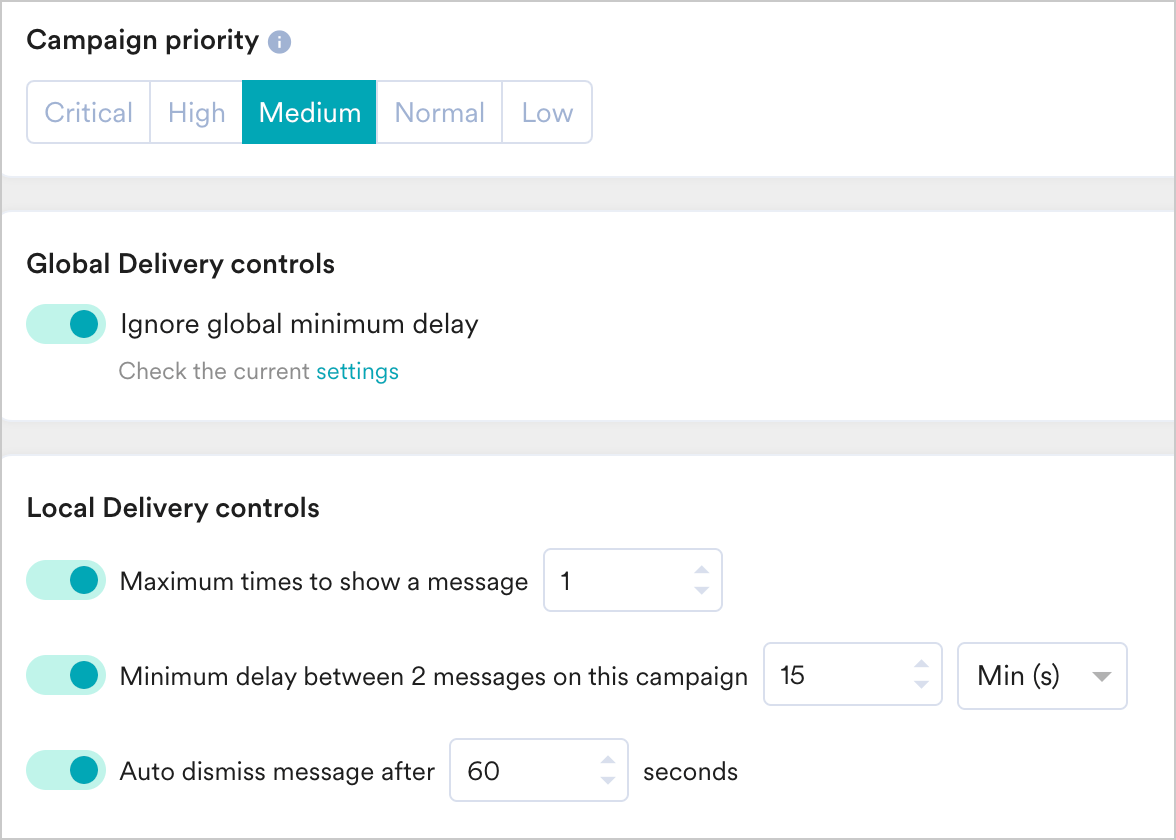 Your campaign is now ready to be sent. Click Publish and confirm in the dialog box that opens up to create the campaign.
Once the campaign has been created successfully, the Campaign Info page will be displayed.
# FAQs
## How to use a custom font in the OSM editor?
Integrating custom fonts into your OSM templates can enhance the visual appeal and maintain brand consistency across your campaigns. Follow these steps to use custom fonts in your templates:
#### **1. Host Your Font File**
Ensure that your custom font file is hosted on a secure domain or a publicly accessible URL. For example: `https://yourdomain.com/fonts/yourfont.ttf`
For demonstration purposes, you can use the following Roboto font link: `https://fonts.gstatic.com/s/roboto/v30/KFOmCnqEu92Fr1Mu5mxKKTU1Kvnz.woff2`
Clicking the URL should start a download, confirming the font file is correctly hosted.
#### **2. Prepare Your Template**
Select the template you want to customize within OSM Pro.
Your campaign is now ready to be sent. Click Publish and confirm in the dialog box that opens up to create the campaign.
Once the campaign has been created successfully, the Campaign Info page will be displayed.
# FAQs
## How to use a custom font in the OSM editor?
Integrating custom fonts into your OSM templates can enhance the visual appeal and maintain brand consistency across your campaigns. Follow these steps to use custom fonts in your templates:
#### **1. Host Your Font File**
Ensure that your custom font file is hosted on a secure domain or a publicly accessible URL. For example: `https://yourdomain.com/fonts/yourfont.ttf`
For demonstration purposes, you can use the following Roboto font link: `https://fonts.gstatic.com/s/roboto/v30/KFOmCnqEu92Fr1Mu5mxKKTU1Kvnz.woff2`
Clicking the URL should start a download, confirming the font file is correctly hosted.
#### **2. Prepare Your Template**
Select the template you want to customize within OSM Pro.
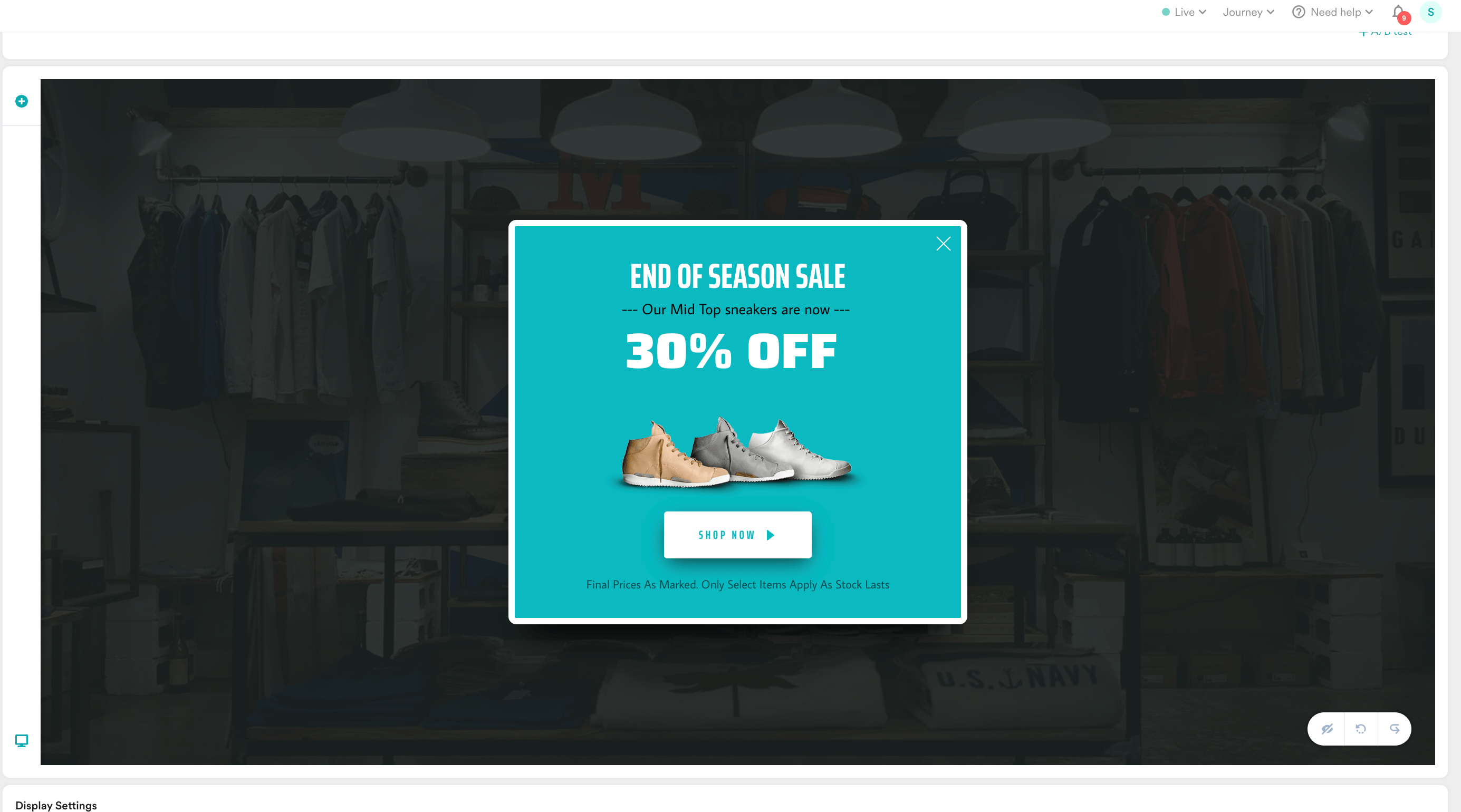 #### **3. Modify Text Settings**
Click on the text element intended for the custom font:
* Click the settings icon, then select the styling icon.
#### **3. Modify Text Settings**
Click on the text element intended for the custom font:
* Click the settings icon, then select the styling icon. 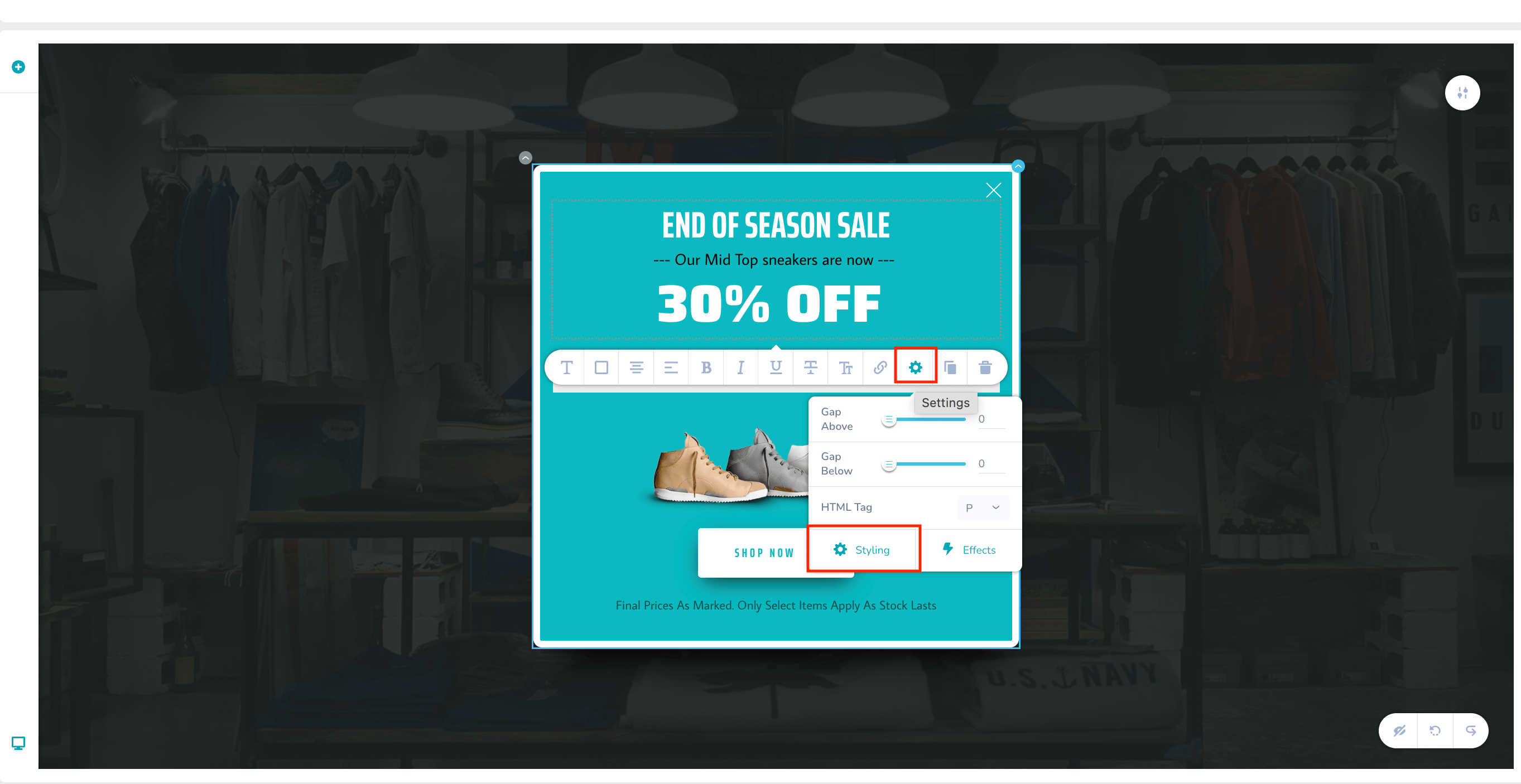 * Switch to the 'Advanced' tab.
 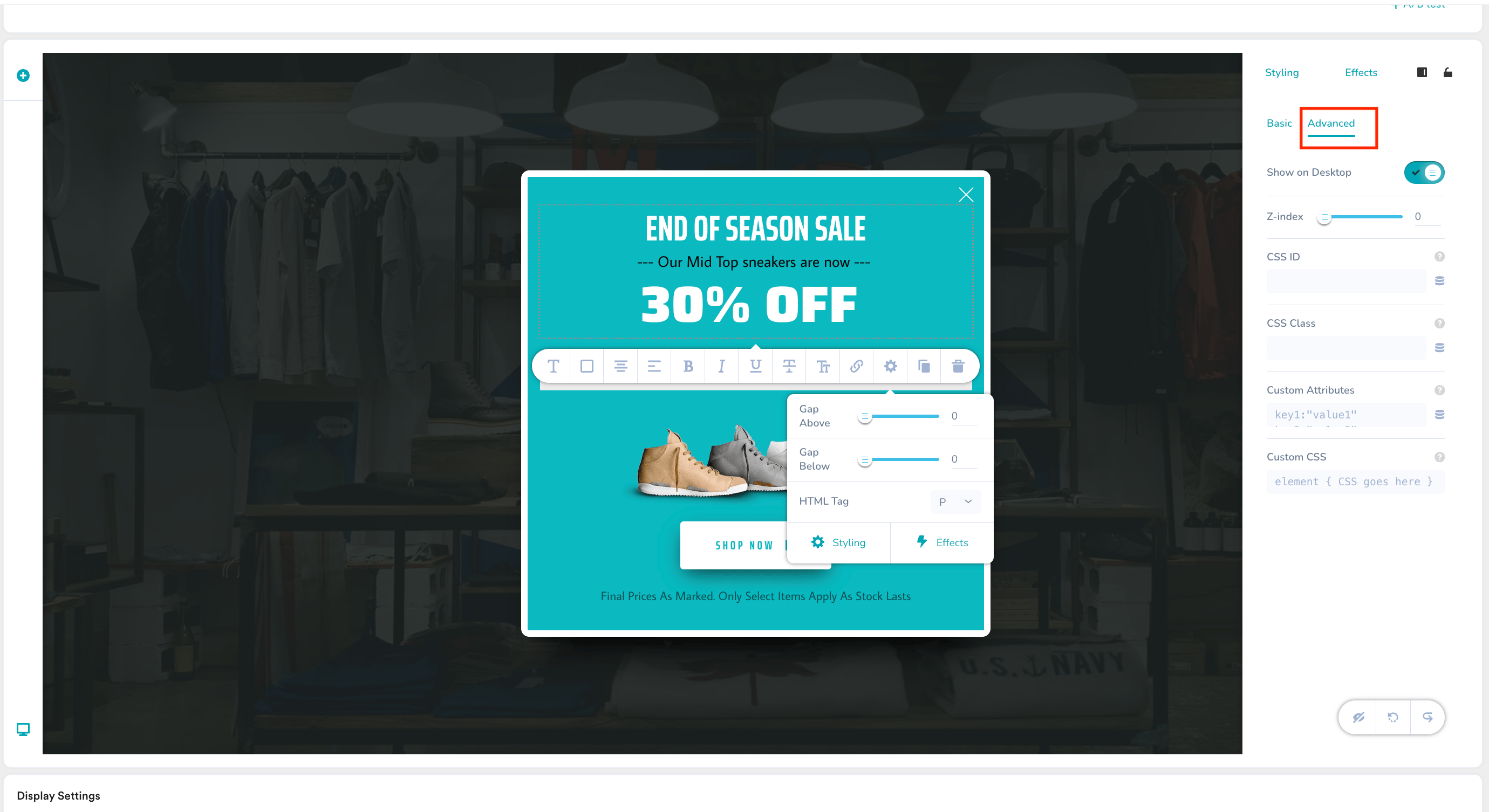 * In the 'CSS Id' field, enter a unique identifier, such as `text_id1`.
 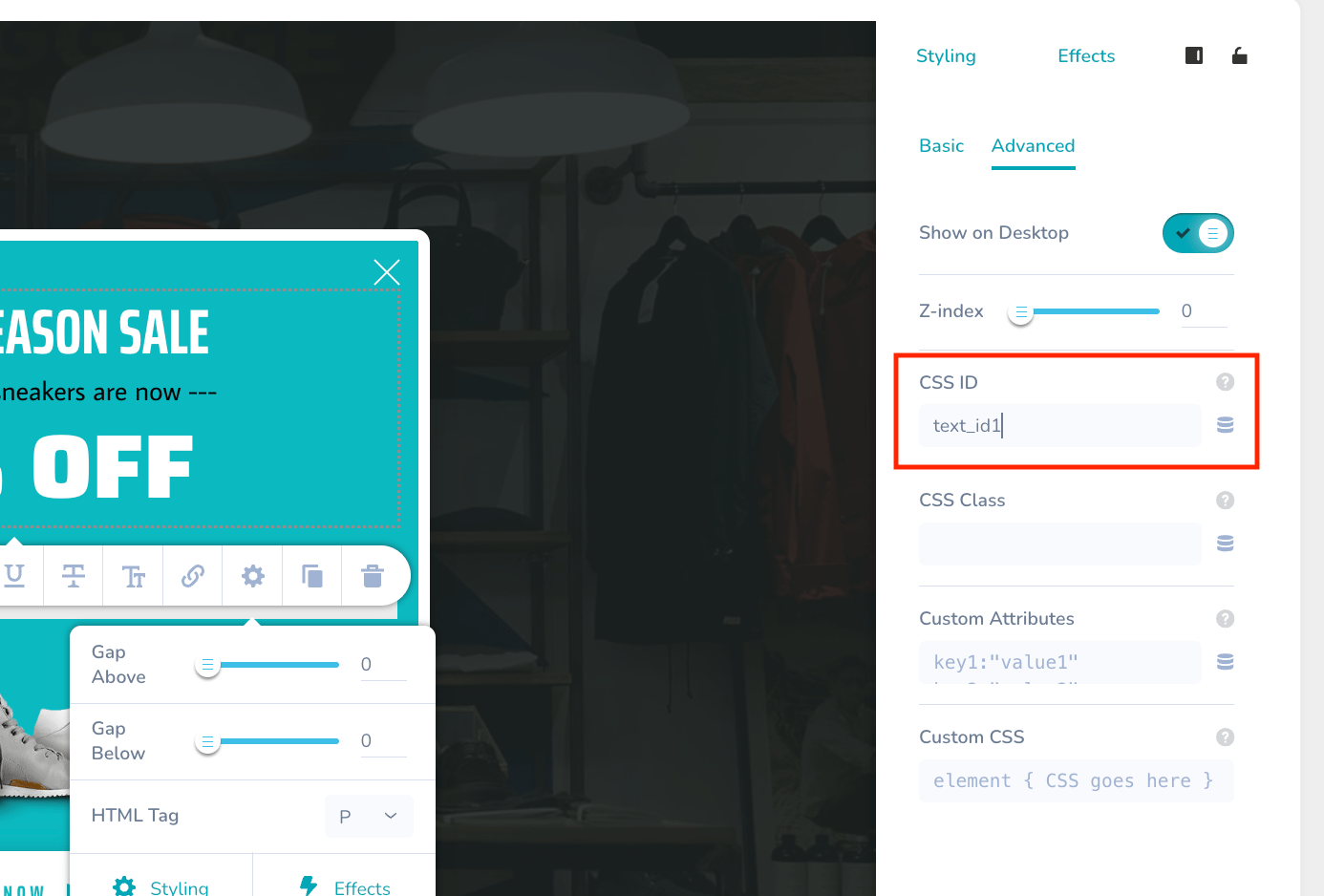 Close the settings menu after adding the identifier.
#### **4. Add an Embed Element**
Insert an embed element into your template. Note that this embed element will not be visible to the user and we will use it to only modify the font style within the template.
Close the settings menu after adding the identifier.
#### **4. Add an Embed Element**
Insert an embed element into your template. Note that this embed element will not be visible to the user and we will use it to only modify the font style within the template.
 #### **5. Insert Custom Font Code**
Click on the previously added embed element and input the following CSS:
HTML
```html wrap theme={null}
```
This code imports your custom font and applies it to paragraphs within the element with ID `text_id1.`
#### **6. Customize Additional Elements**
To change the font for other elements, such as buttons:
* Assign a unique ID to the button as we did above for the text element, for example, `button_id1`.
#### **5. Insert Custom Font Code**
Click on the previously added embed element and input the following CSS:
HTML
```html wrap theme={null}
```
This code imports your custom font and applies it to paragraphs within the element with ID `text_id1.`
#### **6. Customize Additional Elements**
To change the font for other elements, such as buttons:
* Assign a unique ID to the button as we did above for the text element, for example, `button_id1`.
 * Modify the CSS code to include the button ID:
```html HTML wrap theme={null}
```
This CSS code defines a custom font named 'customfont' that is loaded from a specified URL, and applies it to text within elements identified by `#text_id1` and `#button_id1`, ensuring the custom font is used regardless of other styles.
* Modify the CSS code to include the button ID:
```html HTML wrap theme={null}
```
This CSS code defines a custom font named 'customfont' that is loaded from a specified URL, and applies it to text within elements identified by `#text_id1` and `#button_id1`, ensuring the custom font is used regardless of other styles.
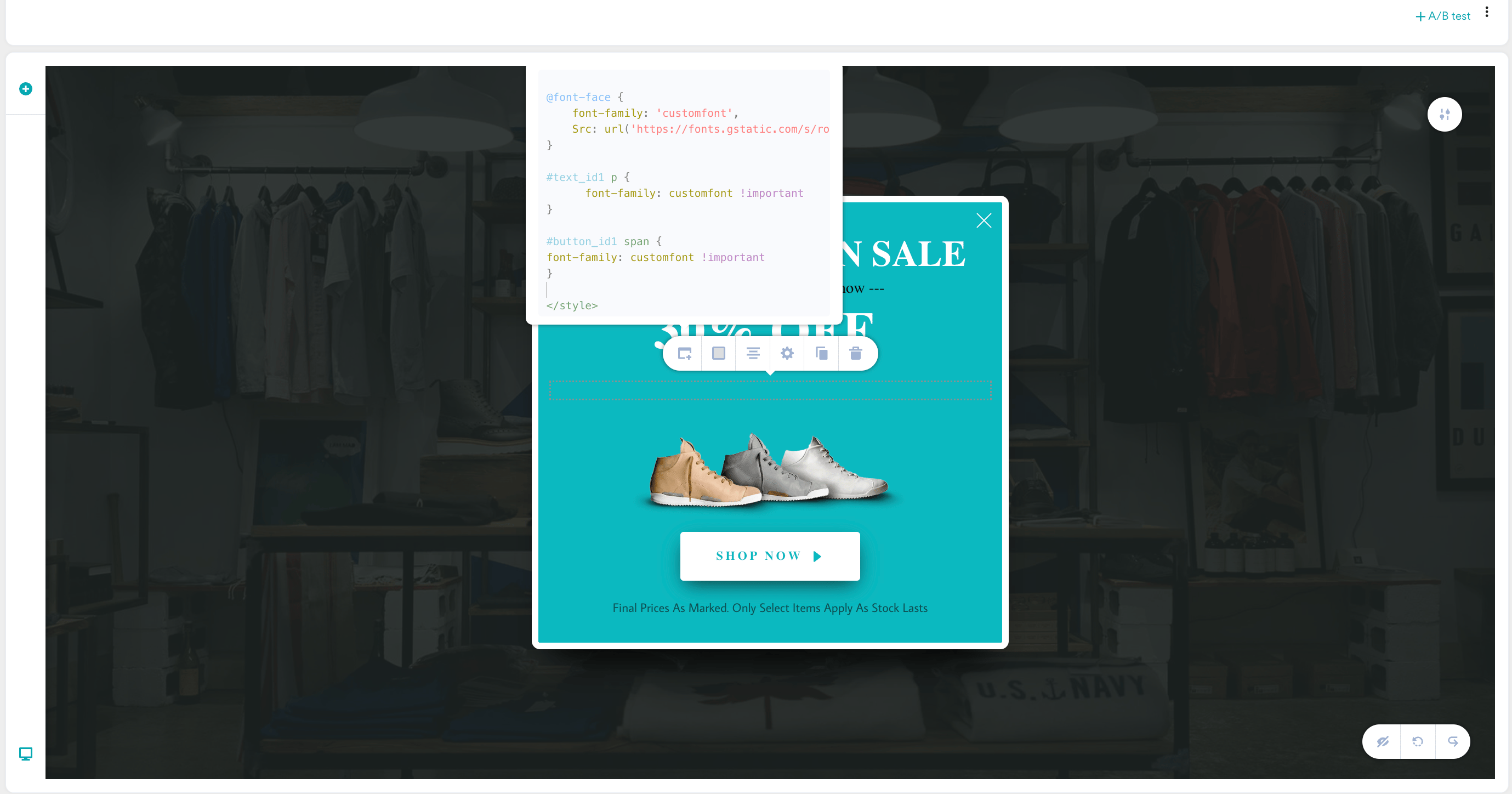 #### **7. Preview and Publish**
After adding the CSS, preview your template to confirm that the font displays correctly. Once verified, you can publish your campaign.
#### **7. Preview and Publish**
After adding the CSS, preview your template to confirm that the font displays correctly. Once verified, you can publish your campaign.
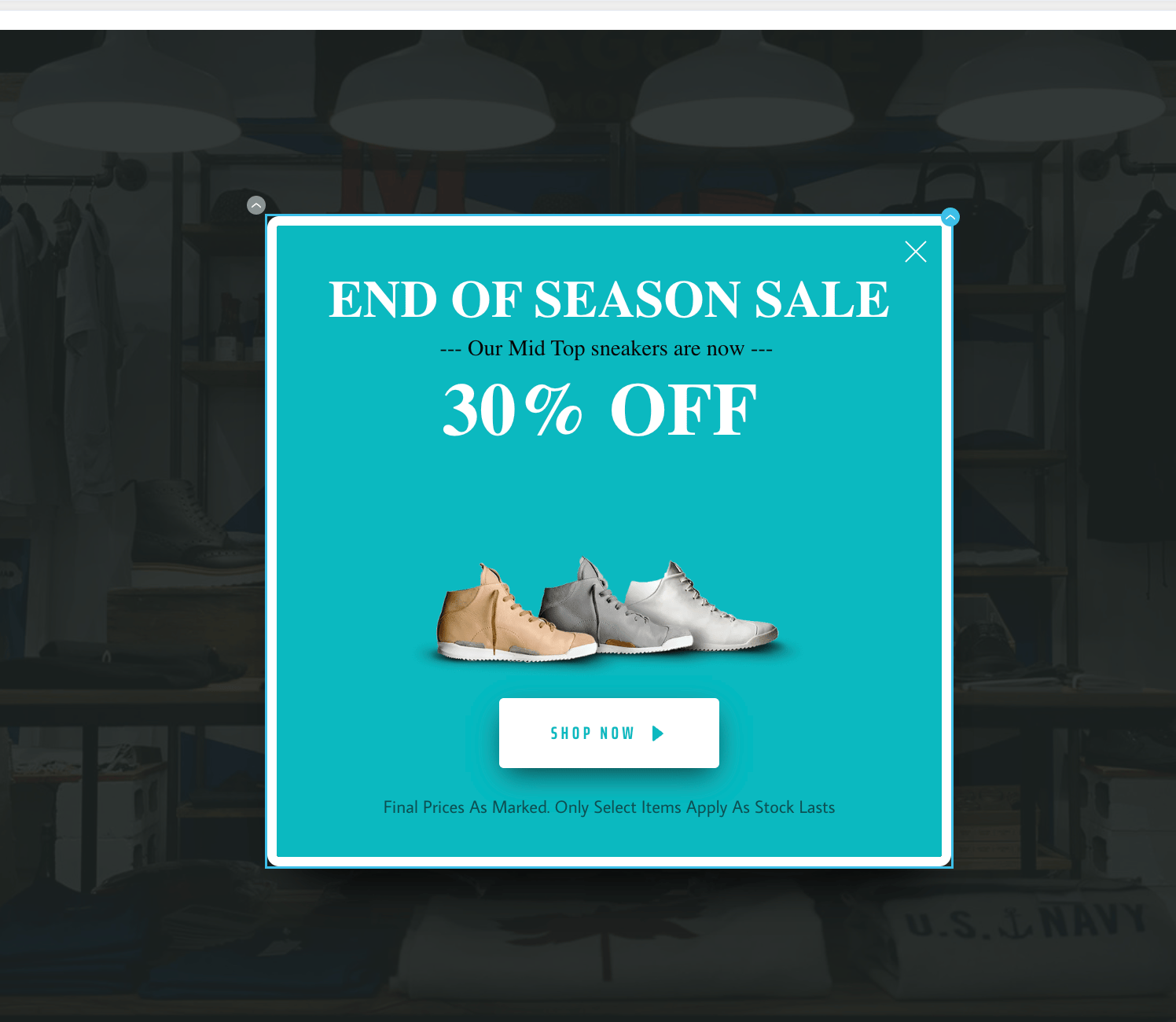 # Next Steps
* [View OSM Campaign Analytics](/user-guide/campaigns-and-channels/on-site-message/analyze/analyze-on-site-messaging-campaigns)
# Next Steps
* [View OSM Campaign Analytics](/user-guide/campaigns-and-channels/on-site-message/analyze/analyze-on-site-messaging-campaigns)